Configuring Legends
This section allows users to configure the legends displayed on the following screens. Versa allows properties to configure these legends as preferred.
-
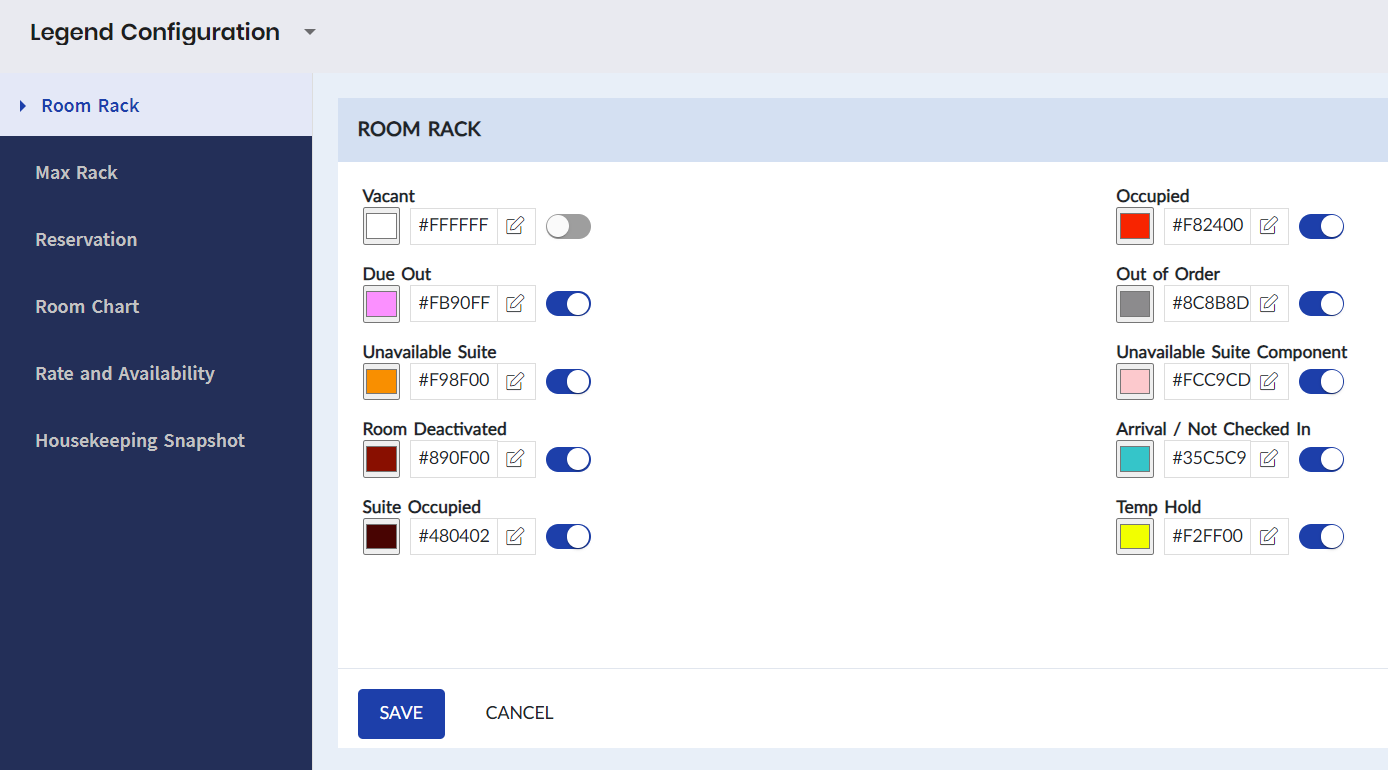
Room Rack - allows users to set color codes to the statuses and conditions of the rooms. The room cells in the Room Rack screen appear in the color code assigned to the status and condition of the room.
-
Max Rack - allows users to set color codes to the statuses and conditions of the rooms. The room cells in the Max Rack screen appear in the color code assigned to the status and condition of the room.
-
Reservation - allows users to set color codes to all reservation statuses. These color codes are displayed in the Confirmation Number column of the Reservation Lists grid. User can also assign color codes to VIP guest, Display no additional name, and Include non-registered guest reservations.
-
Room Chart - allows users to set color codes to the statuses and conditions of the rooms.
-
Rate and Availability Calculator - allows users to set color codes for availability and restriction of room rates and tariffs.
-
Housekeeping Snapshot - allows users to set color codes for all room status and conditions, total number of rooms, total bedded rooms, do not sell rooms, arrivals, departures, and stay overs.
The procedure for configuring legends is the same for all screens. Perform the following steps to configure the legends:
Navigate to Settings à System Setup à Legend Configuration.
Select a menu to configure the legends displayed on the corresponding screen. For example, select Room Rack.
The Legends Configuration screen with the following statuses and their color codes appears.
-
Vacant
-
Occupied
-
Due Out
-
Out of Order/Do Not Sell
-
Unavailable Suite
-
Unavailable Suite Component
-
Room Deactivated
-
Arrival/Not Checked In
-
Suite Occupied
-
Temp Hold
Click the Edit icon against a status/condition to open the color palette.
Pick a color for the status using the color palette.
User can pick a color by entering the RGB, HSL, or hexadecimal value and switch between them by clicking RGB/HSL/Hex field. User can also pick a color by clicking the Color Picker icon and selecting the preferred color.
Click Save. The color code is assigned to the status.
Properties can hide legends and their associated color codes from the Front Desk, Reservation, and Housekeeping screens by disabling the legends in this screen.