Configuring Notifications
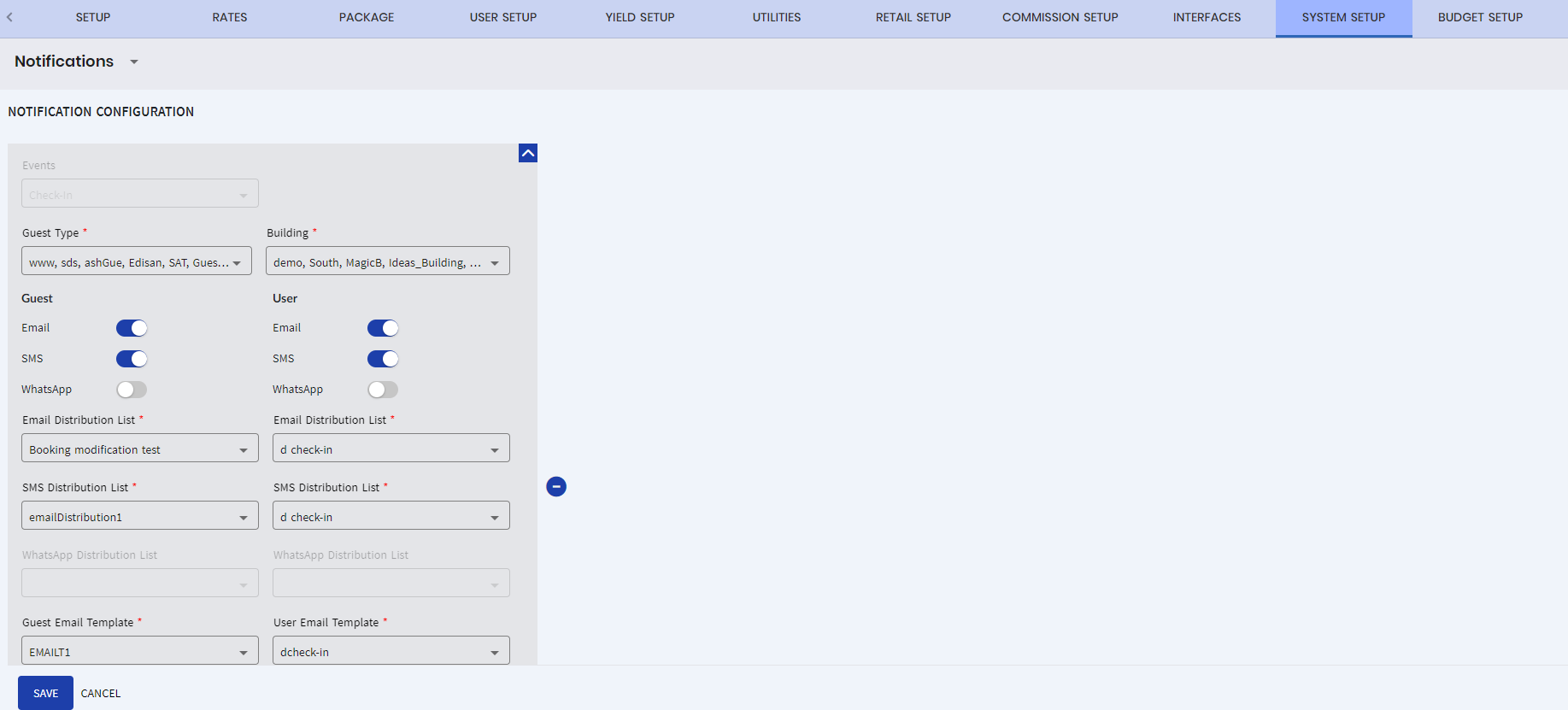
The Notifications option allows users to configure email and SMS notifications. Email and SMS notification to be sent automatically can be configured by selecting the Plus icon in the Notifications screen.
Perform the following steps to configure automatic email/SMS notifications:
Navigate to Settings à System Setup à Notifications.
Click Add New Event Configuration.
Refer to the following table and fill in the fields:
|
Field |
Description |
|---|---|
|
Events |
Select an event for which the email/SMS notification is to be configured. |
|
Time |
A time prior to an event at which the notification must be triggered. Users can set the following:
These fields appear only when Pre-Arrival, Event Reminder, Express Pre Check-In, or Express Pre Check-Out option is selected in the Events drop-down list. Multiple reminder notifications can be created. |
|
VIP Code |
Select a preferred VIP code from the drop-down list. This field appears only when VIP Arrivals option is selected in the Events drop-down list. |
|
Guest Type |
Select the preferred guest types to which the notification must be sent. |
|
Building |
Select the preferred buildings for which the notification is applicable. |
|
Guest/User |
|
|
|
When enabled, the notification will be sent to the guests’/user’s email address. The Email Distribution List, Guest Email Template, and User Email Template fields are made available for selection. |
|
SMS |
When enabled, the notifications will be sent to the guests’/user’s mobile number as SMS, also the SMS Distribution List, Guest SMS Template, and User SMS Template fields are enabled for selection. |
|
|
When enabled, allows users to create notification schedules that trigger WhatsApp messages automatically. By default, the flag will be disabled. |
|
Email Distribution List |
Select the preferred distribution list to send email notifications. |
|
SMS Distribution List |
Select the preferred distribution list to send the SMS notifications. |
|
WhatsApp Distribution List |
Select the preferred distribution list to send the WhatsApp notifications. |
|
Guest Email Template |
Select a preferred email template for guest and user from the Guest Email Template and User Email Template drop-down lists. |
|
Guest SMS Template |
Select a preferred SMS template for guest and user from the Guest SMS Template and User SMS Template drop-down lists. |
Click Save to save the configuration.