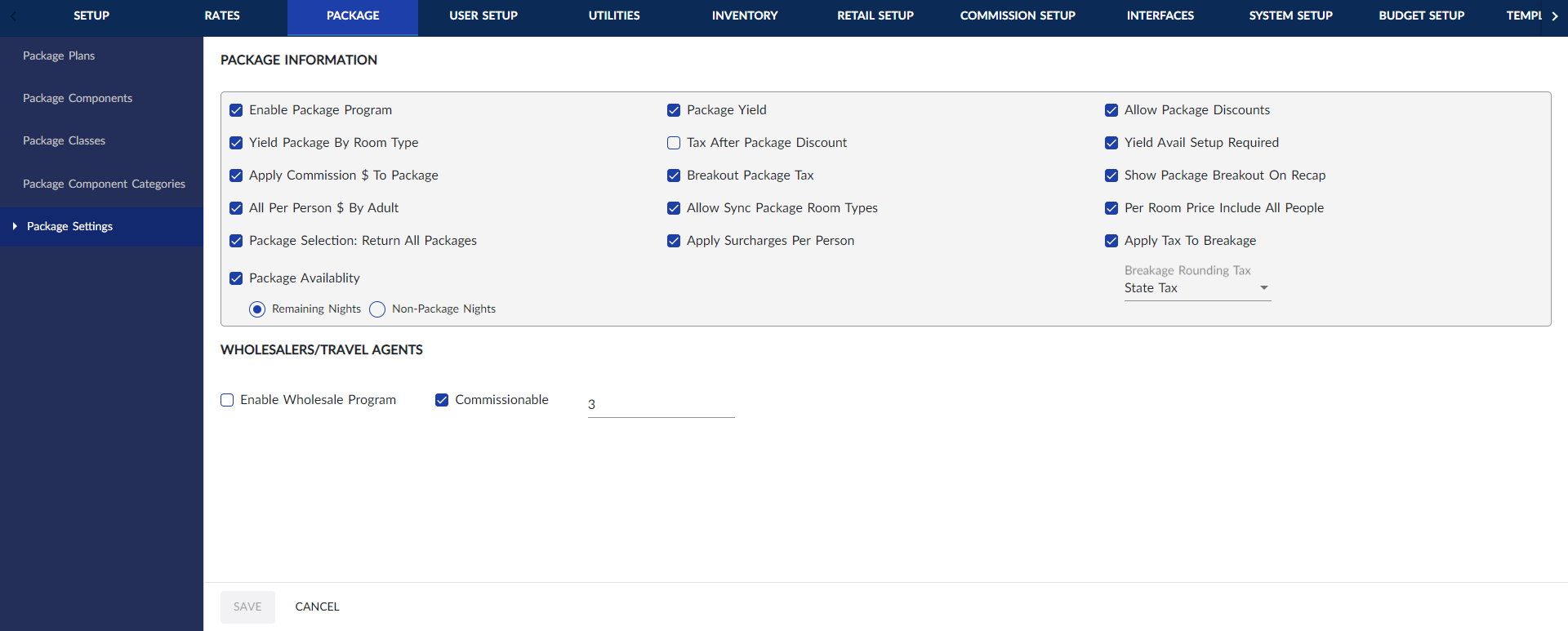
Configuring Package Settings
The Package Settings menu allows properties to configure various settings relating to the packages.
Breakpoint: 85155 - Package Component Category Setup (Engineering - Package)
Perform the following steps to configure the settings:
Navigate to Settings à Package à Package Settings.
Refer to the following table and fill in the fields:
|
Field |
Description |
|---|---|
|
Package Information |
|
|
Package Yield |
When enabled, system allows properties to configure yield rates for the package plans. The Package Yield tab in the Create Package Plan screen is enabled only if this flag is enabled. |
|
Allow Package Discounts |
When enabled, system allows properties to configure discounts for the package plans. The Discounts tab in the Create Package Plan screen is enabled only if this flag is enabled. |
|
Yield Package By Room Type |
When enabled, system allows users to configure yield rates based on room types. The Room Type drop-down list is displayed in the Package Yield screen only if this flag is enabled. |
|
Tax After Package Discount |
When enabled, if a package discount is applied for a reservation, the tax amount for the package is calculated on the discounted rate. If not, tax amount is calculated on the original package rate. |
|
Yield Avail Setup Required |
When enabled, system allows packages to be yielded for a portion of the package duration. When disabled, packages can only be yielded for the whole duration of the package. |
|
Apply Commission $ To Package |
When enabled, system allows users to apply commissions on packages. |
|
Breakout Package Tax |
When enabled, the taxes charged on a package for its components will be displayed as an individual line item in the guest folio. If not, the taxes associated with the components of a package will be posted as a single line item in the folio. For example, if this flag is enabled, the tax is associated with the room charge component of a package will have a line-item room tax in the folio. If not enabled, the tax component for room charge and all other components of the package will be included and displayed as package tax. |
|
Show Package Breakout On Recap |
When enabled, the rate split up of a package (individual component rates) are displayed in the Reservation Recap screen. If not, only the package rate is displayed in the Reservation Recap screen. |
|
As Per Person $ By Adult |
When enabled, the surcharge for stay is calculated based on the number of adults in the reservation. If not, it is calculated based on the number of rooms. |
|
Allow Sync Package Room Types |
When enabled, system allows properties to configure surcharges based on room type for the package plans. The Surcharges tab in the Create Package Plan screen is enabled only if this flag is enabled. |
|
Per Room Price Include All People |
When enabled, the per room components included in a package are calculated, irrespective of the number of adult guests in the room. |
|
Package Selection: Return All Packages |
When enabled, system does not check the number of days in the Package Duration field against the number of days involved in the guest reservation. If not, system checks the number of days in the Package Duration field against the number of days involved in the guest reservation. |
|
Apply Surcharges Per Person |
When enabled, the surcharge added to the package is calculated based on the number of adult guests in the reservation. If not, the surcharge is applied for one reservation. |
|
Apply Tax To Breakage |
When enabled, taxes are applied to individual components of a package. |
|
Package Availability |
When enabled, if a stay which is a combination of package and non-package days is extended, system checks for package availability and restrictions based on one of the following options selected:
|
|
Discount Priority |
Allows users to specify the order in which discounts must be applied by assigning a priority number (1 to 6) in each of the following market segment fields:
Each market segment must have a unique priority number. If the same number is assigned to multiple segments, the following message is displayed: Discount Priority must be unique The priority value must be between 1 and 6: If the value exceeds 6, the message is displayed: Exceeds Maximum Value If the value is less than 1, the message is displayed: Precedes Minimum Value |
Click Save.