Configuring Storage Rooms
The Storage Room Setup screen allow users to configure storage rooms for lost and found items in the property. However, these storage rooms must not be treated in the same way as room reservations, as they serve different purposes.
Breakpoint: 75100 - Storage Room Setup (Housekeeping - Housekeeping)
Perform the following steps to create a storage room:
Navigate to Settings à Housekeeping Setup à Storage Room Setup.
Click Create Storage Room Setup. The Create Storage Room Setup screen appears.
Refer to the following table and fill in the fields:
|
Field |
Description |
|---|---|
|
Storage Code |
A unique code to identify the storage room. |
|
Storage Description |
A description that details the storage room. |
|
List Order |
The position in which the storage code must appear in the grid. The system automatically generates a value based on the value of the previously created list item. |
|
Active |
When enabled, it indicates that the storage room is active. |
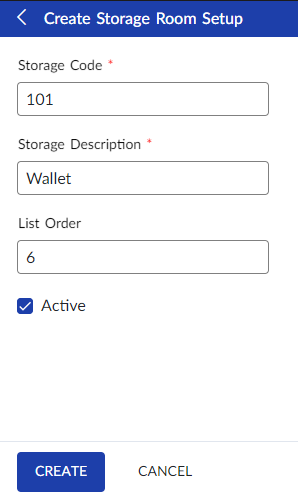
Click Create. The storage code is created and displayed in the grid.
Users can also perform the following actions in the Storage Room Setup screen:
-
Modify the details of the storage code using the Edit icon.
-
Delete the storage code record using the Delete icon.
-
Drag the storage code record to change positions within the grid using the Drag icon. The list order number is automatically updated after the change in positions.
-
Copy the storage code record using the Copy icon. When copied, all the details of the storage record, except the code, are copied to the new storage record.
-
Search for the storage room using the code or description.