Creating Distribution Lists
The Distribution List menu allows users to create distribution lists for email and SMS notifications. Users can customize the mail recipients and create a list to send notification. Once the distribution list is created, users can map the list to the preferred event in Notifications (Settings à System Setup à Notifications) screen.
Breakpoint: 50260 - OTA Fee Maintenance (Engineering - Manager)
Perform the following steps to configure distribution lists:
Navigate to Settings à Utilities à Distribution List.
Click Create New Distribution List. The New Distribution List page appears.
Refer to the following table and fill in the details.
|
Field |
Description |
|---|---|
|
Distribution List Name |
A name for the distribution list. Up to 25 alphanumeric characters are supported. |
|
|
When enabled, it indicates that the distribution list is for email notifications. The From, CC, and BCC fields are available for selection only if this flag is enabled. The email distribution list created will be displayed in the Email Distribution List drop-down list of the Notification Configuration screen for selection. |
|
SMS |
When enabled, it indicates that the distribution list is for SMS notifications. The SMS distribution list created will be displayed in the SMS Distribution List drop-down list of the Notification Configuration screen for selection. |
|
|
When enabled, it indicates that the distribution list is for WhatsApp notifications. The SMS distribution list created will be displayed in the WhatsApp Distribution List drop-down list of the Notification Configuration screen for selection. |
|
From |
The email ID from which the notifications must be sent. This field is applicable only for email notifications. |
|
To, CC, and BCC |
Select the preferred contacts from the following options:
|
|
Selected Recipients |
|
|
To |
Displays the email IDs selected in the distribution list to which the notification must be sent. |
|
CC |
Displays the email IDs selected in the distribution list which are included in the cc section. |
|
Bcc |
Displays the email IDs selected in the distribution list which are included in the bcc section. |
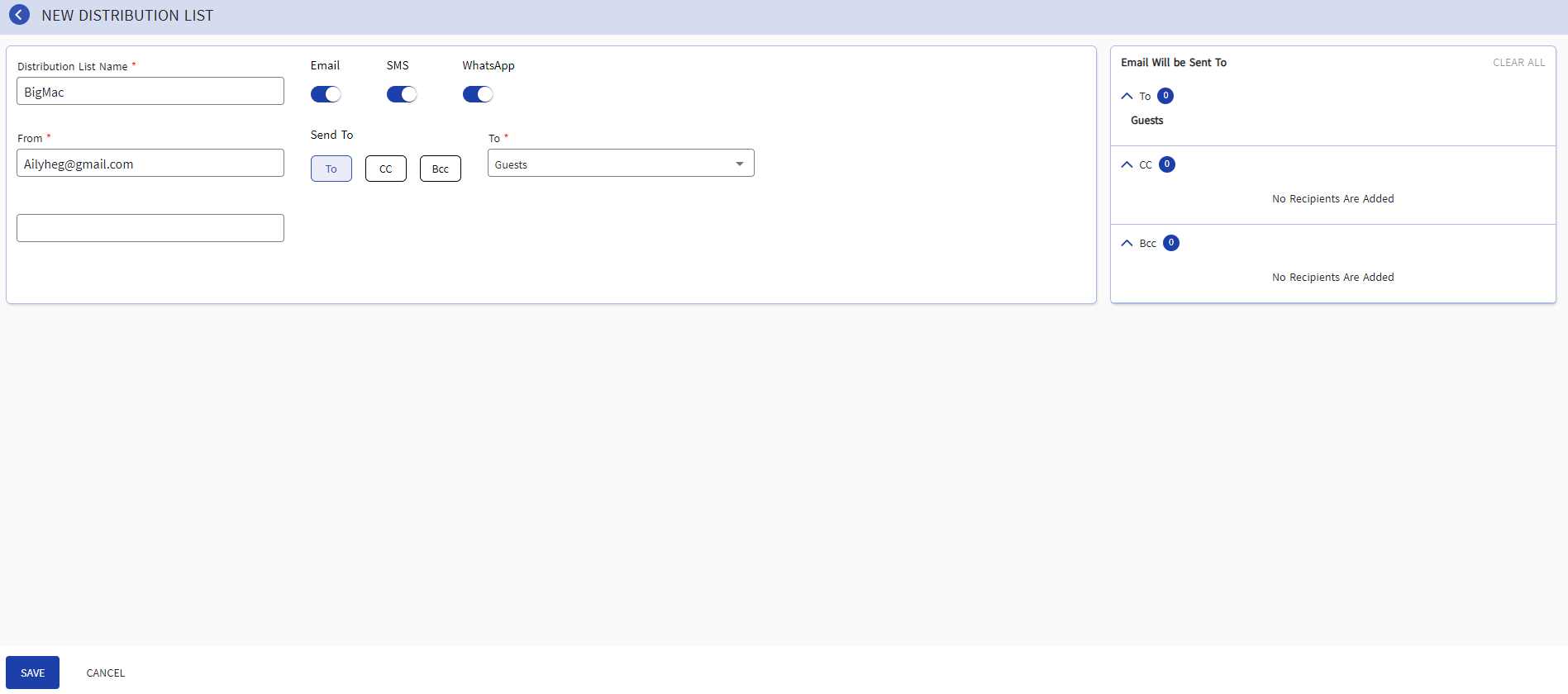
Click Save. The distribution list for email/SMS notification is saved.
The distribution lists created are displayed in the alphabetical order of Distribution List Name.
Users can also perform the following actions in the Distribution List screen:
-
Modify a distribution list using the Edit icon.
-
Delete a distribution list using the Delete icon. A distribution list cannot be deleted when in use.
-
Search for a distribution list using the distribution list name.