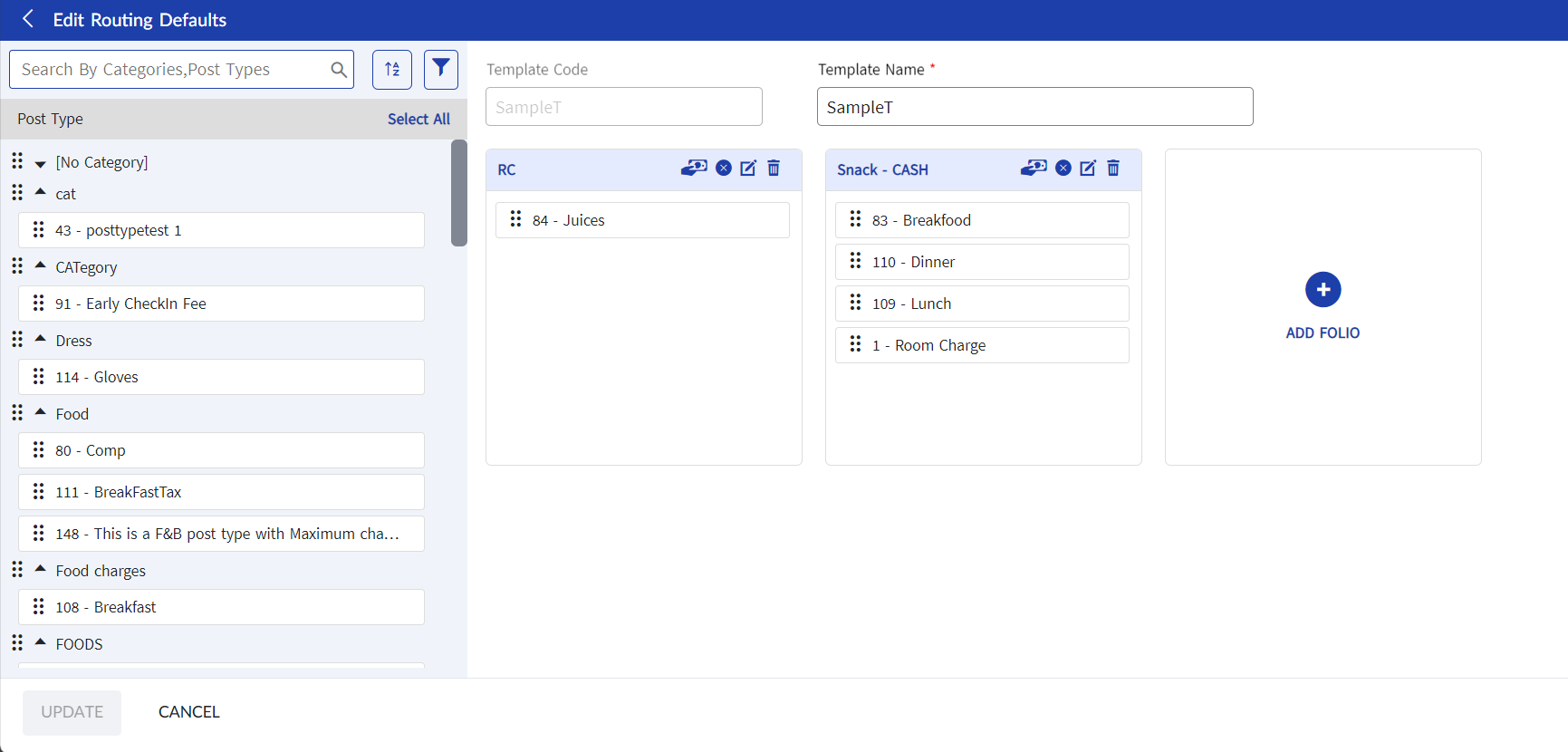
Creating Folio Templates
The Folio Template screen allows users to create template folios that can be attached to a reservation, guest profile, tariff, and/or package. When a template is attached to a reservation and charges are posted, charges will reflect against the respective folios as configured.
Folio templates created here will be displayed for selection in the following screens:
-
Load Folio Template drop-down list in the Folio Defaults tab of the Create Guest screen.
-
Folio Template drop-down list in the Tariffs screen
-
Folio Template drop-down list in the Package Plans screen
-
Folio Template drop-down list in the Payment Information tab of the Create New Reservation screen.
Perform the following steps to create a folio template:
-
Navigate to Settings à Template Setup à Folio Template.
-
Click Create Folio Template. The Create Routing Defaults screen appears.
-
Enter a unique code for the template in the Template Code field. A maximum of 15 alphanumeric characters can be entered.
-
Enter a name for the template in the Template Name field. A maximum of 50 alphanumeric characters can be entered.
-
Click Add Folio.
-
Enter a preferred name for the folio and click the Done icon.
Users can add any number of folios as preferred under a template and configure either Cash or A/R Account as the default payment method for each folio using the PaymentMethod icon.
Drag and drop the preferred post types to folios.
The post types will be displayed under each category and users can assign them to their preferred folios for routing charges. If preferred, users can select all the post types under all categories and assign them to a folio by clicking Select All.
-
Click Save.