Creating Tariff Groups
The Tariff Groups menu allows users to create, edit, and delete tariff groups. Users can group similar tariffs into one and apply the required changes to the tariff group, which in turn will be applied to all the tariffs present in the tariff group.
Breakpoint: 50285 - Tariff Group (Engineering - Manager)
Perform the following steps to create a tariff group:
Navigate to Settings à Rates à Tariff Groups.
Click Create Tariff Group. The Create Tariff Group screen appears.
Refer to the following table and fill in the fields:
|
Field |
Description |
|---|---|
|
Tariff Group Name |
The name for the tariff group. Up to 50 alphanumeric characters are supported. |
|
List Order |
The position in which the tariff groups must appear in the grid. The system automatically generates a value based on the value of the previously created list item. |
|
Allowed Reservation Type(s) |
Select the Nightly or Hourly option to filter the results displayed in the Available Tariff section. |
|
Search |
Search for tariffs using tariff group code or name. |
|
Active |
When enabled, it indicates that the tariff group is active. |
|
Available Tariff |
Select the tariffs that are to be grouped. |
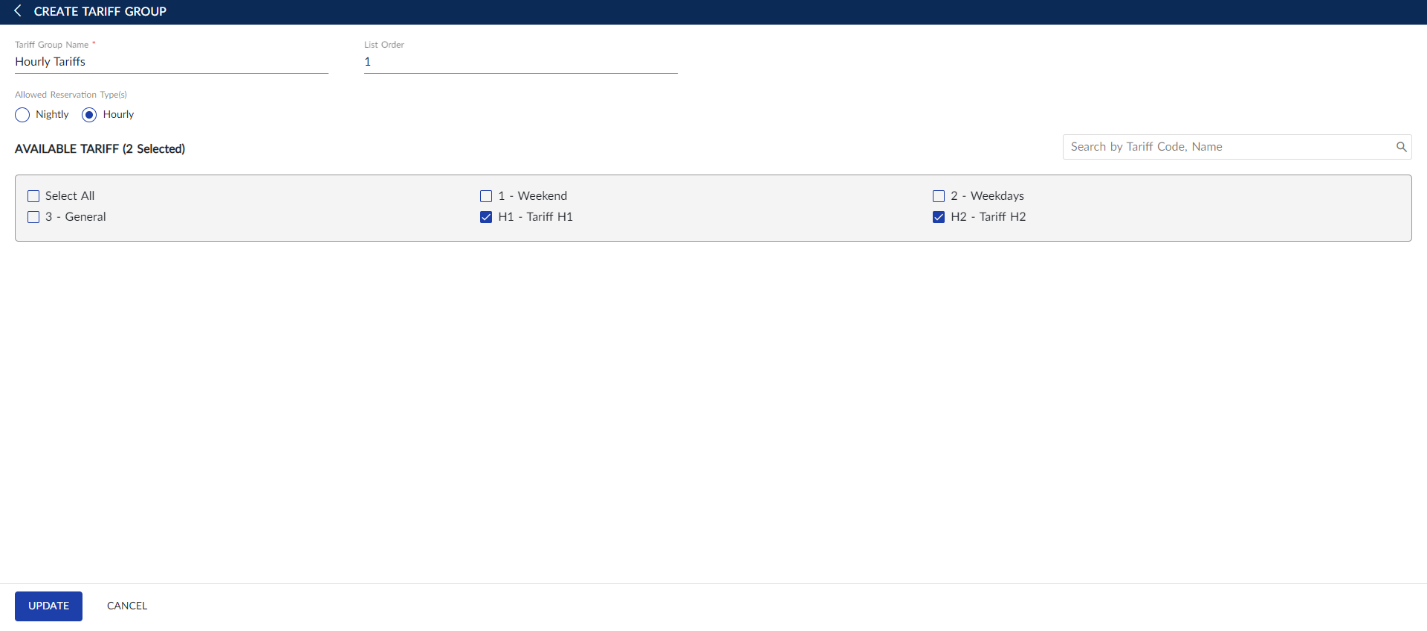
Click Create. The tariff is created successfully.
Users can also perform the following actions in the Tariff Group screen:
-
Modify a tariff group using the Edit icon.
-
Delete a tariff group using the Delete icon. A tariff group cannot be deleted when in use.
-
Drag a tariff group to change positions within the grid using the Drag icon.
-
Search for a tariff group using the tariff name.