Setting Up Commissions
Navigate to Settings à Commission Setup.
Enter the preferred Commission Class.
Filter the preferred categories and items to configure commissions.
Select a preferred item to apply new commission set up rules.
Click More option against the item.
Click New. The Commission screen appears.
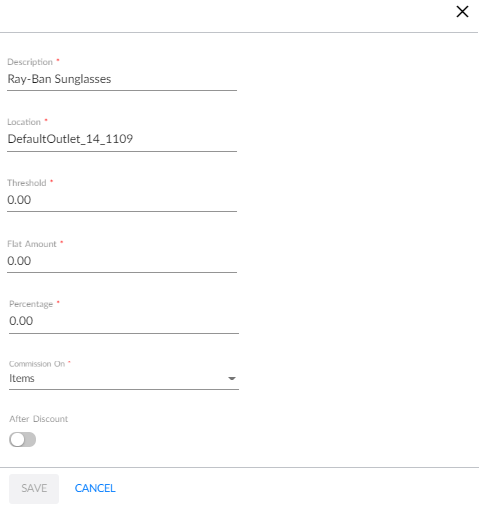
Refer to the following table and fill in the details.
|
Field |
Description |
|---|---|
|
Description |
The description of the item. |
|
Location |
The default outlet location of the item. |
|
Threshold |
The price at which the next commission percentage (or flat amount) must be applied. |
|
Flat Amount |
The amount of commission to be paid to the staff member. |
|
Percentage |
The percentage of commission to be paid to the staff member. |
|
Commission On |
This option is applicable only for Threshold commissions. The available options are:
|
|
After Discount |
Determines if the final commission amount must be calculated before or after applying the item discount during sale. |
Click Save.
Perform the following steps to add commissions to multiple items at once:
Select the preferred items from the grid.
Select an option from the Apply drop-down list.

Enter the preferred value for the selected category.
Click Apply All.
Users can also perform the following actions in the Commission Setup screen:
-
Click the Advanced Search option in the Commission Setup grid to allow users to narrow down the search results by the preferred options.
-
Click the Edit icon to modify a commission setup. New rules can also be set for a pre-existing item.