Setting Up Daily Restrictions
The Daily Restrictions menu allows users to create, edit, copy, and delete daily restrictions for room bookings at the property. Setting up restriction allows properties to control reservations/bookings based on days of a week, minimum number of guests on a reservation, length of stay of a reservation and so on.
Breakpoint: 50310 - Daily Restriction (Engineering - Manager)
Perform the following steps to create a daily restriction:
Navigate to Settings à Rates à Daily Restrictions.
Click Create Restriction. The Create Restriction screen appears.
Refer to the following table and fill in the fields:
|
Field |
Description |
|---|---|
|
Start Date |
The start date of restriction. |
|
End Date |
The end date of restriction. |
|
Days |
The days of the week on which the restriction should be applied. |
|
Room Type |
The room types for which the restrictions should be applied. |
|
Minimum Arrive |
The minimum number of nights for which the reservation must be made for arrivals on the selected dates. |
|
Minimum Stay |
The minimum number of nights for which the reservation must be made for stays on the selected dates. |
|
Oversell |
The maximum number of rooms that can be oversold on the selected dates. |
|
Closed for Arrivals |
When enabled, indicates that the bookings are closed for guest arrivals within the selected dates. However, bookings can be made if the arrival date falls outside the selected date range. That is, guests cannot check-in at the property between the selected dates, however, guests who have checked in before the dates can stay in the property. |
|
Arrival |
The number of arrivals after which the property must be closed for arrival on the selected date range. For example, if this field value is selected as 5, then the user can book a maximum of 5 reservations whose arrival date falls within the selected date range. |
|
No Sell Through |
When enabled, indicates that the user cannot book a reservation if any of the stay days in the reservation overlaps with the selected dates. |
|
Comments |
Enter the comments for the restriction. |
|
Interface Type |
Select the OTA to which the restrictions must be applied. |
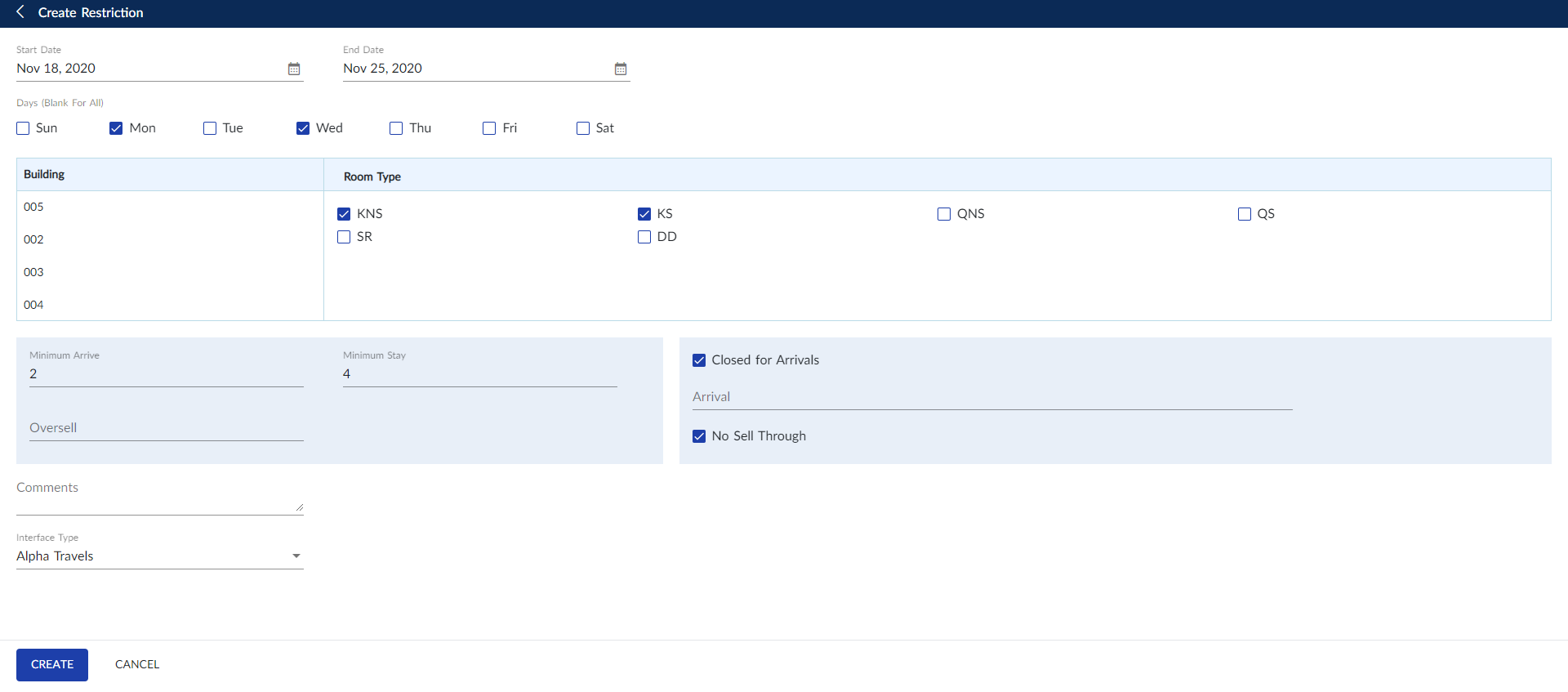
Click Create. The restriction is created successfully.
If there is a restriction already applied for the selected period, the system will display the message, Duplicates found - Overwrite existing records, with Yes and No options. Select the Yes option to overwrite the existing record.
Users can also perform the following actions in the Daily Restrictions screen:
-
Modify a daily restriction using the Edit icon.
-
Delete a daily restriction using the Delete icon.
-
Copy the daily restriction with a new restriction using the Copy icon.
-
View the restrictions in the grid according to the room type by disabling the E-Z View toggle.
-
Search for restrictions based on start date, end date, building, and room types using the Advanced Search option.