Setting Up Daily Sales Budget
The Daily Sales Budget allows users to set up and track the daily budgets for room revenue at the property. That is, for each date, users can enter the total number of expected bookings, the average room revenue, the number of guaranteed and not guaranteed reservations. The daily budget can be set based on one of the following options:
-
Guest Type
-
Origin
-
Segment 1
-
Segment 2
For a specific period, only one of the above listed budget types can be selected. However, different guest types, origins, or segments can be configured for different dates.
Breakpoint: 6000 - Daily Sales Budget (Front Office - Budget Setup)
Perform the following steps to sort, filter, and retrieve the dates for daily budget, perform the following steps:
Navigate to Settings à Budget Setup à Daily Sales Budget.
Refer to the following table and fill in the fields:
|
Field |
Description |
|---|---|
|
Start Date |
The date from when the daily budget must be configured. |
|
Period Duration |
The total number of days (in months) for which the daily budget must be configured. Any value from 1 Month to 12 Months can be selected from the drop-down list. |
|
Building |
Indicates the building code for which the daily budget configuration is applicable, for example, 005 or EA01. All building codes created in the Building Codes screen under the Settings à Setup à Room menu are displayed in this drop-down list. |
|
Budget Setup |
|
|
Guest Type Origin Segment 1 Segment 2 |
The values in the drop-down list and the column headings in the grid are updated based on the selected budget type. For example, if the user selects Origin as the budget type, all origins created in the Origins (Settings à Setup à General à Origins) screen are displayed in the drop-down list. Also, the grid headings are updated based on the created origins, such as Internet, Advertisement, Marketing Campaign, and so on. |
Click Retrieve. The dates in the grid are populated based on the values selected or entered in the Start Sate, Period Duration, and Budget Setup options.
Perform the following steps to set the daily budget:
Enter the total number of expected bookings, the average room revenue, the number of guaranteed and not guaranteed reservations in their respective columns in the grid.
The S Chart/Ceiling column indicates suite rooms that are expected to be booked at the property on a specific date. The value entered here will be displayed in the Rooms Sold Graph (navigation required), which can be viewed for one day, one week, or one month.
Click Save. The values entered in the grid are saved.
In addition, the Plus icon on each column header allows users to create a schedule, set the same pattern for a consecutive date range or create a custom budget for specific days of the week. Assume that for all weekends between the dates 02/18/2021 and 04/18/2021, the number of non-guaranteed reservations for the Transient guest type must set to 50.
Perform the following steps to create this pattern:
Select Guest Type under Budget Setup and select Transient from the drop-down list.
Click the Plus icon against the Tourist Non Guarantee column in the grid. The Tourist Non Guarantee window is displayed.
Refer to the following table and fill in the fields:
|
Field |
Description |
|---|---|
|
Start Date |
The date from when the daily budget is applicable. By default, the current date is displayed. |
|
End Date |
The end date for the daily budget schedule. |
|
Desired Value |
The preferred value based on the column header. |
|
Custom Days |
Indicates whether the daily budget applies to all weekdays or weekends in the selected date range or only to specific days. For example, if the user selects Specific Days from the drop-down list, they must also select the days of the week for which the budget applies. |
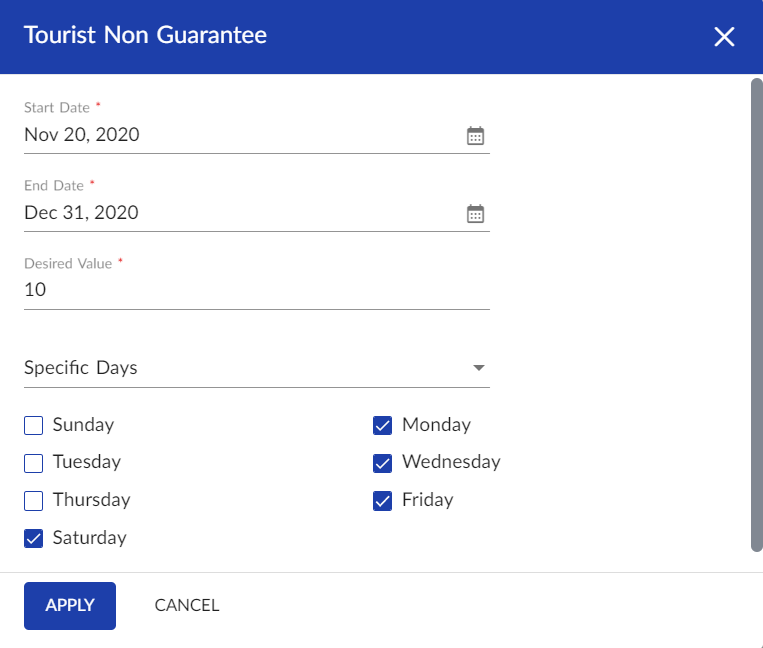
Click Apply. The pattern is created and the respective fields in the grid are updated.