Setting Up Monthly Rooms Budget
The Monthly Sales Budget allows users to set up and track the monthly budgets for room revenue at the property. That is, for each month in a financial year, users can enter the number of expected bookings, the actual room rate, and the revenue from the reservations. The monthly budget can be set based on one of the following options:
-
Guest Type
-
Origin
-
Segment 1
-
Segment 2
For a selected year, only one of the above listed budget types can be selected. However, different guest types, origins, or segments can be configured for different months.
Breakpoint: 6002 - Monthly Rooms Budget (Front Office - Budget Setup)
Perform the following steps to set up monthly rooms budget:
Navigate to Settings à Budget Setup à Monthly Rooms Budget.
Select the year for which the monthly budget must be configured from Select Year drop-down list.
Select the budget type from the available options under Budget Setup. The values in the drop-down list are updated based on the selected budget type.
Select a value from the Budget Setup drop-down list.
Refer to the following table and fill in the fields:
|
Field |
Description |
|---|---|
|
TBD Rate |
The rate of the room that is to be classified as To Be Determined. The rate set here is used for reporting purposes only. Values up to 12 digits are supported. |
|
Rooms |
The number of rooms expected to be booked in the selected month. Users can enter any number from 1 to 1000. |
|
Rate |
The average rate at which the rooms in the property must be booked. Values up to 12 digits are supported. |
|
Revenue |
The total room revenue expected in the selected month. The value in this column is automatically updated based on the value entered in the Rooms and Rate columns (Number of Rooms × Rate). |
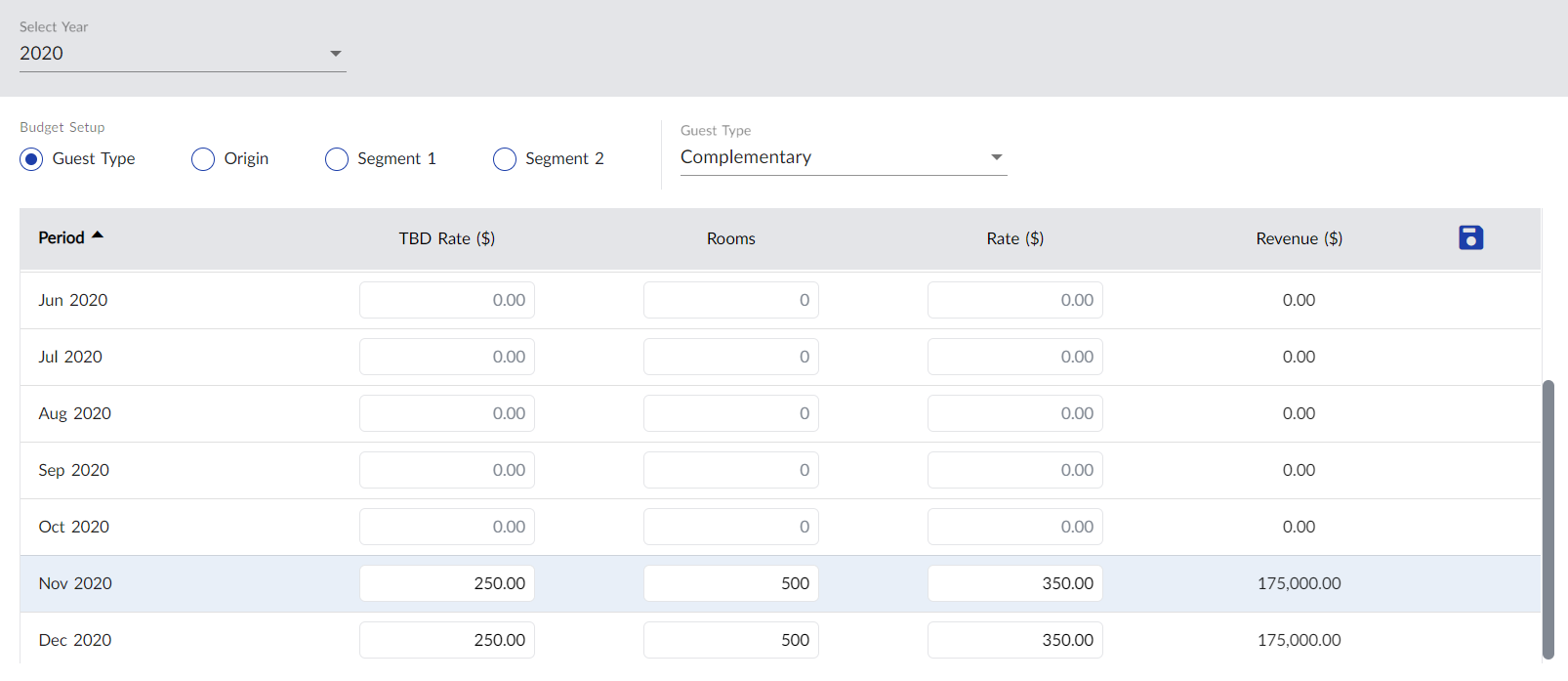
Users can set values in the above listed columns only for the current and future months in the year. These columns are greyed out for the previous months in the year.
Click Save. The monthly room budget is created.
Users can change the configured monthly budget at any time by updating the values and clicking Save.