Daily Flash
Report Parameters
|
Field |
Description |
|---|---|
|
Report Name |
The name of the report. |
|
Report Date |
The date for which the report must be generated. |
|
Report Options |
The data that must be included in the report. Available options include the following:
|
|
Building Codes |
A drop-down list consisting of all the building codes. All building records created in the Building Codes (Settings à Setup à Room à Building Codes) screen are displayed as options in the drop-down list. Users can select multiple or all the building codes from the list to be displayed in the report generated. |
|
Show All Statistical Info |
By default, this flag will be enabled. |
|
Show Department Summary |
By default, this flag is disabled. |
|
Hide Transient and Group Info |
By default, this flag will be disabled. |
|
Hide System Postings |
By default, this flag will be disabled. |
|
Hide Group Summary Info |
By default, this flag will be disabled. |
|
Hide Complimentary Group Info |
By default, this flag will be disabled. |
|
Display Year on Year |
By default, this flag will be disabled. |
|
Consider Wholesaler as Transient |
By default, this flag will be disabled. |
|
Revenue Options |
Available options include the following:
|
|
Hide Last Year’s Revenue |
When enabled, the following changes will take place:
When disabled, the postings, rooms count, and room revenue of the previous year will be displayed in the respective sections of the report. By default, this flag will be disabled. |
|
Include Non-Bedded Rooms |
By default, this flag will be disabled. |
Sample Report
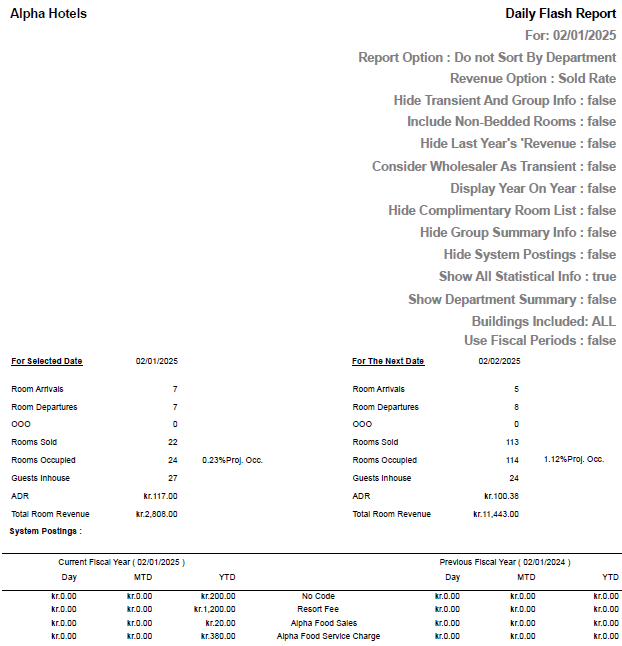
Report Fields
|
Field |
Description |
|---|---|
|
For Selected Date (The date when the report is generated) |
|
|
Room Arrivals |
The number of rooms for which the guest is scheduled to arrive. |
|
Room Departures |
The number of rooms for which the guest is scheduled to depart. |
|
OOO |
The number of rooms in the Out of Order status on the selected date. |
|
Rooms Sold |
The number of rooms sold on the selected date. |
|
Rooms Occupied |
The number of rooms occupied on the selected date. |
|
Proj. Occ. |
The percentage of the projected occupancy. |
|
Guests Inhouse |
The number of in-house guests on the selected date; this includes all guests regardless of whether it is a comp or non-comp room. |
|
ADR |
The average daily rate calculated by the system. |
|
Total Room Revenue |
The sum of all revenue earned through room assignment for the selected date. |
|
For The Next Date |
|
|
Room Arrivals |
The number of rooms for which the guest is scheduled to arrive. |
|
Room Departures |
The number of rooms for which the guest is scheduled to depart. |
|
OOO |
The number of rooms in the Out of Order status on the selected date. |
|
Rooms Sold |
The number of rooms sold on the selected date. |
|
Rooms Occupied |
The number of rooms occupied on the selected date. |
|
Proj. Occ. |
The percentage of the projected occupancy. |
|
Guests Inhouse |
The number of in-house guests on the selected date; this includes all guests regardless of whether it is a comp or non-comp room. |
|
ADR |
The average daily rate calculated by the system. |
|
Total Room Revenue |
The sum of all revenue earned through room assignment for the selected date. |
|
System Postings |
|
|
Day |
The current day postings to that of the same date of the previous year. |
|
MTD |
The month to current date values of the current year and the previous year. |
|
YTD |
The year to current date values of the current year and the previous year. |
|
YOY |
The year to year values comparing the current day postings to that of the same date of the previous year. This column will appear only if the Display Year On Year flag is enabled. |
|
YOY% |
The year to year percentages comparing the current day postings to that of the same date of the previous year. This column will appear only if the Display Year On Year flag is enabled. |
|
Postings Summary |
|
|
Total Debits |
Sum of all charges/debit entries posted. |
|
Total Payments |
Sum of all payments posted. |
|
Total Deposits |
Sum of all deposits posted. |
|
Total Other Credits |
Sum of other credits posted. |
|
Net Change to G/L |
The net change amount posted to the general ledger account. |
|
Yesterday’s G/L |
The general ledger amount of the previous day. |
|
Total Current G/L |
The current total general ledger amount. |
|
Statistical Info |
|
|
Day |
The current day postings to that of the same date of the previous year. |
|
MTD |
The month to current date values of the current year and the previous year. |
|
YTD |
The year to current date values of the current year and the previous year. |
|
Transient and Group Info |
|
|
Day |
The current day postings to that of the same date of the previous year. |
|
MTD |
The month to current date values of the current year and the previous year. |
|
YTD |
The year to current date values of the current year and the previous year. |
|
Complimentary Room List (In-House) |
Displays all the complimentary rooms in the In House status, including the name of the guests. |
|
Group Summary |
|
|
Group ID# |
The group ID associated with the group booking. |
|
Group Name |
The name of the group booking. |
|
Avg Rate w/oComps |
The average booking rate without comps. |
|
Avg Rate w/Comps |
The average booking rate with comps. |
|
Comps |
The total number of complimentary rooms used in the group booking. |
|
Rooms |
The total number of rooms used in the group booking. |
|
Room Revenue |
Sum of all revenue amounts earned from the group booking. |
|
7 Day Upcoming Forecast |
|
|
Date |
The date when the report is generated followed by the dates for the next six days. |
|
Day |
The day when the report is generated followed by the next six days. |
|
Rooms Occupied |
The total number of rooms occupied. |
|
Occupancy Percent |
The percentage of the total number of rooms occupied. |