Task Report
Report parameters
|
Field |
Description |
|---|---|
|
Report Name |
The name of the report. |
|
Start Date |
The start date from when the data must be considered for generating the report. |
|
End Date |
The end date until when the data must be considered for generating the report. |
|
Guests/Stay |
|
|
Report Type |
Available options include the following:
|
|
Report Options |
Available options include the following:
|
|
Manager Options |
Available options include the following:
|
|
Selected Sales Managers |
A drop-down list consisting of all the sales managers for the report selection. |
|
Selected Catering Managers |
A drop-down list consisting of all the catering managers for the report selection. |
|
Selected Conference Svc Managers |
A drop-down list consisting of all the conference svc managers for the report selection. |
|
Selected All Users |
A drop-down list consisting of all the users for the report selection. |
|
Task Type |
Select a preferred task type from the available options in the drop-down list. All task types available in the Tasks screen will be displayed for selection here. |
|
Status |
Select a preferred status of tasks that must be displayed in the generated report from the available options in the drop-down list. All statuses created in the Task Status screen will be displayed for selection here. |
|
Department |
A drop-down list consisting of all the departments created in the Department Setup screen will be displayed as options here. Users can select multiple or all the departments from the list to be displayed in the report generated. This drop-down list will appear only if the Department report type is selected. |
|
Reservation Confirmation No |
Enter the confirmation number of the reservation, if preferred. Users can also enter multiple confirmation numbers in the field by separating them with a comma. This field will appear only if the Department report type is selected. |
|
Guest Name |
Enter the name of the guest, if preferred. Users can also enter multiple guest names in the field by separating them with a comma. This field will appear only if the Department report type is selected. |
|
Account/Booking |
|
|
Report Type |
Available options include the following:
|
|
Assigned To |
Select the preferred user to whom the task is assigned. Users can select multiple or all users to be considered when the report is generated. |
|
Task |
Available options include the following:
|
|
Status |
Select a preferred status of tasks that must be displayed in the generated report from the available options in the drop-down list. All statuses created in the Task Status screen will be displayed for selection here. |
|
Department |
A drop-down list consisting of all the departments created in the Department Setup screen will be displayed as options here. Users can select multiple or all the departments from the list to be displayed in the report generated. |
|
Account No |
Enter the account number of the group account, if preferred. Users can also enter multiple account numbers in the field by separating them with a comma. |
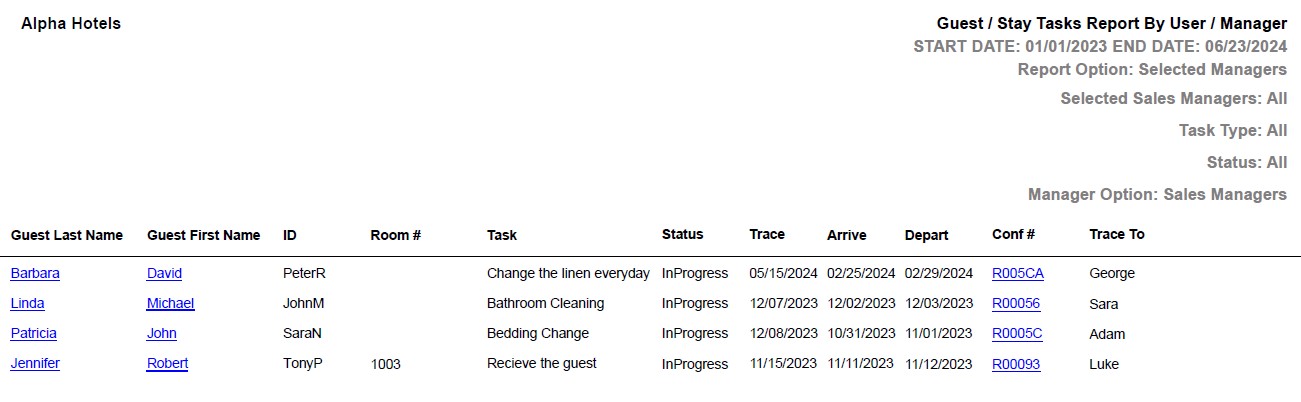
Sample Report - Guest / Stay Tasks Report
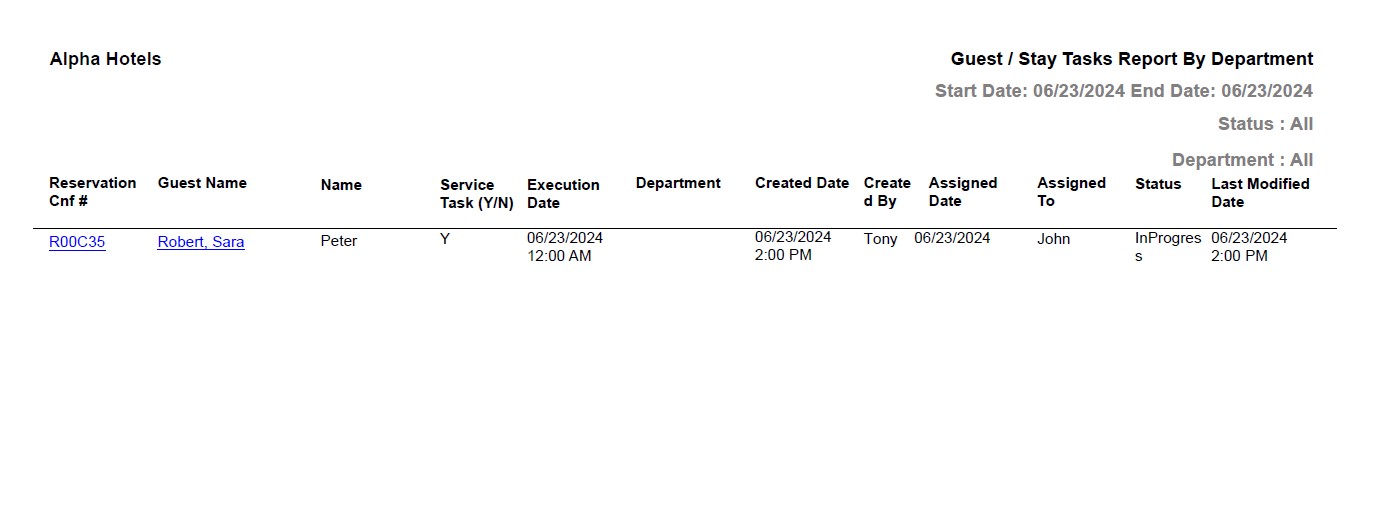
Sample Report - Guest / Stay Tasks Report By Department
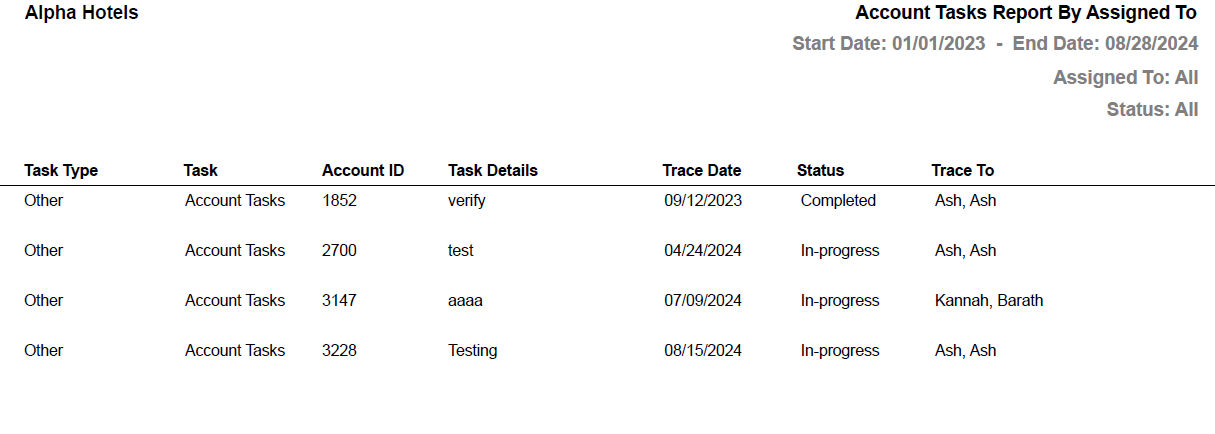
Sample Report - Account Tasks Report
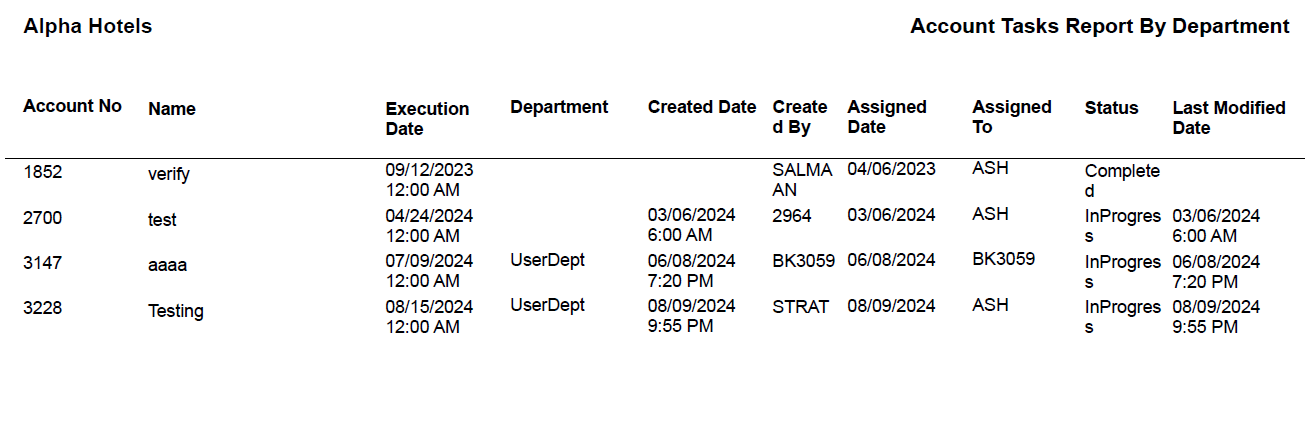
Sample Report - Account Tasks Report By Department
Report Fields
|
Field |
Description |
|---|---|
|
Guest Last Name |
The last name of the guest will appear as a hyperlink and clicking it will navigate the user to the guest record. |
|
Guest First Name |
The first name of the guest will appear as a hyperlink and clicking it will navigate the user to the guest record. |
|
ID |
The ID of the user to whom the task was assigned. |
|
Task |
Description of the assigned task. |
|
Trace |
The date on which the manager is prompted to review the task. |
|
Arrive |
The date of arrival of guest. |
|
Depart |
The date of departure of guest. |
|
Room # |
The room number of the guest. |
|
Conf # |
The confirmation number of the reservation will appear as a hyperlink and clicking it will navigate the user to the reservation record. |
|
Service Task (Y/N) |
Indicates whether it is a service task or not. |
|
Execution Date |
The date when the task must be executed. |
|
Department |
The department code assigned to the reservation. |
|
Created Date |
The date when the task is created. |
|
Created By |
The name of the user who created the task. |
|
Assigned Date |
The date when the task is assigned. |
|
Assigned To |
The name of the user to whom the task is assigned. |
|
Status |
The status of the task. |
|
Trace To |
The name of the user to whom the task is assigned. |
|
Last Modified Date |
The date when the task was last modified. |