Adding Event Details to Diary
The Diary option in the Home menu allows users to add events for any future or past days and view/modify the events created by other users for any future or past days. The user can also attach images and tags to these events.
Perform the following steps to add an event to the calendar:
Click the Diary option in the Home screen. The Diary screen appears.
Select a date for which the event must be created.
Click Create. The Create Event pane appears.
Refer to the following table and fill in the fields:
|
Field |
Description |
|---|---|
|
Diary Date |
The date for which the event is created. |
|
Subject |
A short description about the event. Values up to 100 alphanumeric characters can be entered. |
|
Event |
The actual description of the event. Values up to 2000 alphanumeric characters can be entered. |
|
Tags |
Search for the preferred tags and add them to the event. These tags can be used to search for the event when there are many events for a day. |
|
Your Attachments |
|
|
Attach Your Images |
Drag and drop the images of the room into this drop box. Maximum of 10 images can be uploaded for a room type. The images must be less than 5 MB and in JPEG, GIF, or PNG format. |
Click Create. The event will be created and displayed in the Diary screen.
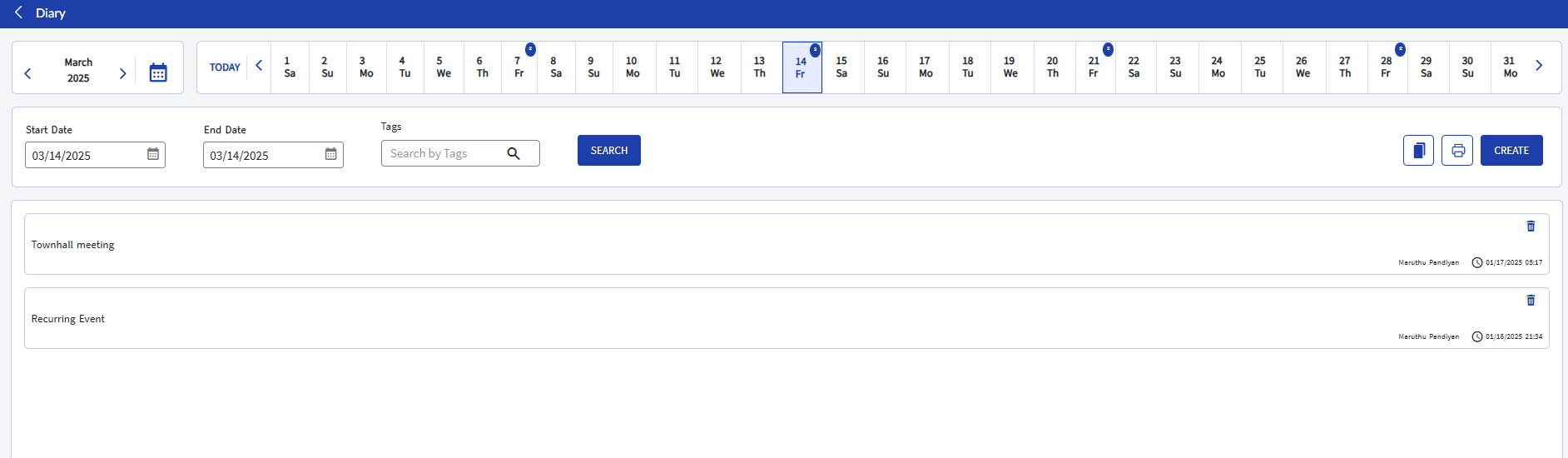
Users can also perform the following actions from the Diary screen:
-
Print Diary Report by clicking the Print icon.
-
Edit the event details by clicking the Edit icon.
-
View the revision history of an event by clicking the Modified History icon.