Assigning Rooms on Priority
The Priority Room Assignment tab allows users to allot rooms for unassigned or suite arrivals based on priority. The settings related to room features and locations must be configured before assigning any rooms on priority to guests.
Breakpoint: 55075 - Priority Room Assignment (Front Office - Reservation)
Breakpoint: 55040 - Auto Assign (Front Office - Reservation)
Perform the following steps to assign rooms on priority:
Navigate to Reservations à Priority Room Assignment.
Refer to the following table to sort and filter rooms based on the available filter criteria:
|
Field |
Description |
|---|---|
|
Filters |
|
|
General |
The generic filters for room search. The following options are available:
|
|
Feature/Location |
The feature or location filters used to search rooms. The following options are available:
|
|
Arrival Date |
The date of arrival of the guests. All bookings made for the selected arrival date are displayed. |
|
Building |
The rooms in the selected building are displayed. |
|
Room Type |
The rooms in the selected room type category are displayed. |
|
Booking ID |
The identification number of the group reservation for which the room(s) must be allocated. The user can select multiple booking IDs. |
Click Apply. The rooms that match the selected filter criteria are displayed in the grid.
Click Assign against the reservation record. The Assign Room window appears.
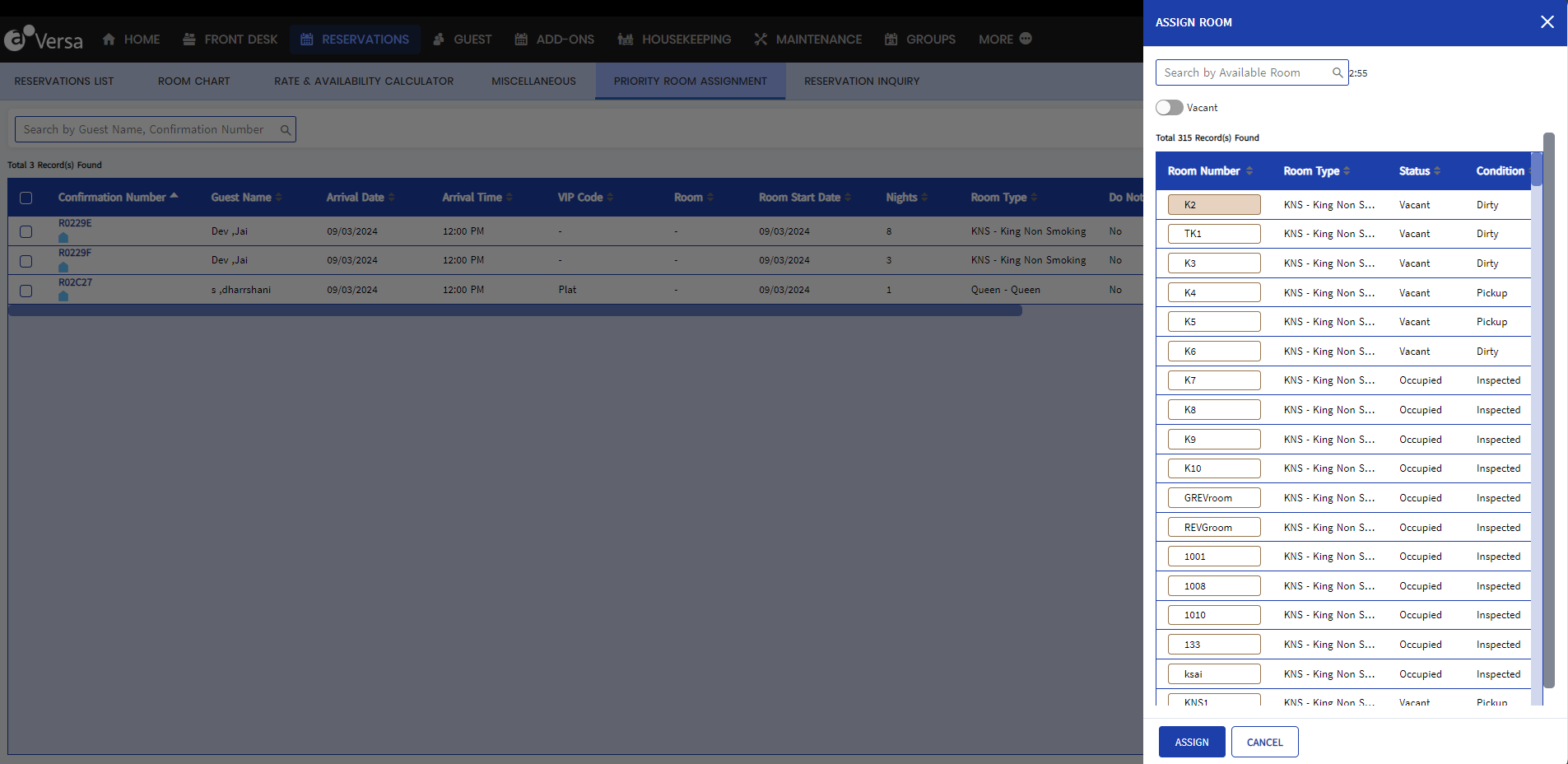
In this window, users can select the preferred room to be assigned to the reservation based on the housekeeping status. When the Vacant flag is enabled, only vacant rooms will be displayed in the grid. When disabled, all rooms will be displayed in the grid irrespective of their statuses.
Users can also perform the following actions in the Priority Room Assignment screen:
-
Auto assign the room number by selecting the reservation and clicking Auto Assign.
-
Search for a reservation using the confirmation number or guest name.
-
View the booking summary by clicking on the confirmation number.
-
Clear all filter criteria by clicking Reset All.