Blocking Guests
Agilysys Versa allows users to block guests from the current (logged in) property or across all properties that the user has access to. A user can block a guest only if there are no current or future reservations for the guest. The message, <Guest Name> has upcoming reservation in <Property Name>. Please cancel the reservation before blocking the guest, will be displayed when a user tries to block a guest with a current or future reservation. The user must cancel all the future reservations across properties to successfully block the guest.
Also, once blocked, reservations cannot be created for the guest and the message, Guest is blocked, will be displayed on selecting the guest profile in the Create Reservation screen.
Guests can be blocked permanently or for a specified duration. If blocked for a selected duration, the guest profile will be automatically unblocked after the configured date (in the Block Guest pop-up window).
Breakpoint: 78610 - Block/UnBlock Guests (Engineering - Manager)
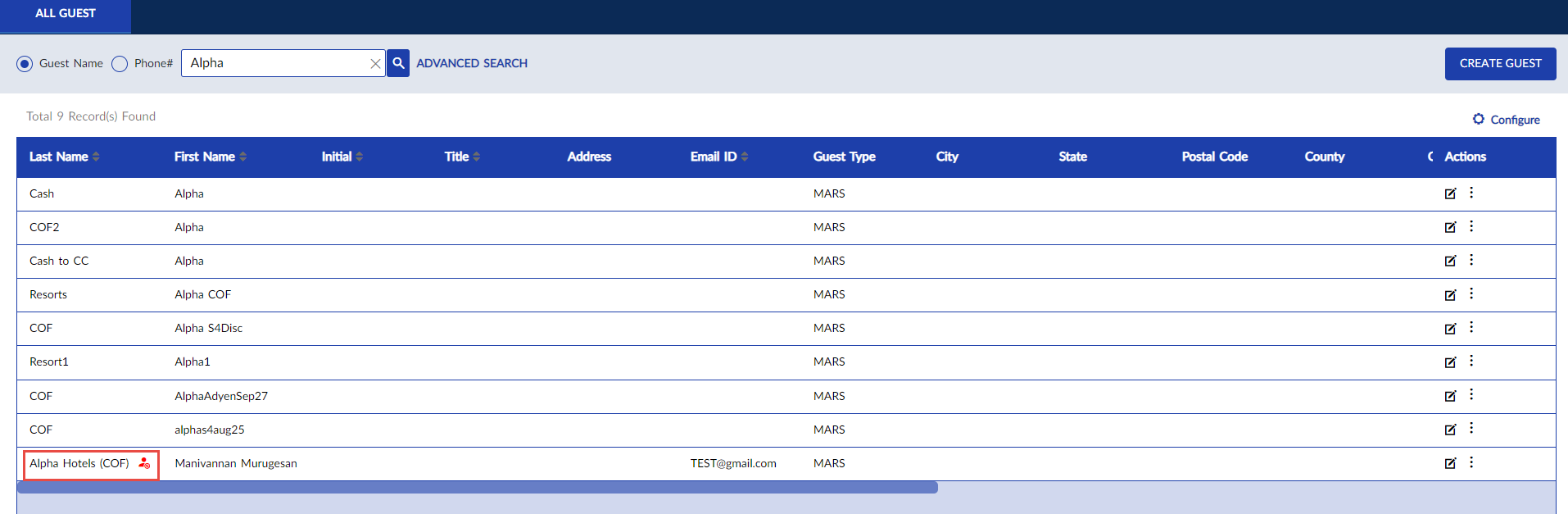
Users can also unblock the blocked guest at any time across the selected properties using the Unblock option in the All Guest screen or from the Edit Guest screen. After the guest is unblocked, the guest profile will be active and can be selected to create reservations.
Properties can avoid duplicate profile creation for the blocked guests using the flags in the Guest Block Configuration section of the Stay Defaults screen. However, if one of the options in this section is not selected, and a guest profile with the same details is added, the guest record can be successfully created. For example, if the Include Social Security Number check option is not selected, a guest profile with the same name and social security number but different phone numbers can be created.
For more information on the flags, refer to the Configuring Stay Defaults section in Ext - Agilysys Versa Property Setup Guide.