Checking Out Guests
The Check Out menu allows users to check out their guests on their departure dates. This menu consists of Guest Check Out and Group/Batch Check Out options.
Perform the following steps to check out a guest:
Navigate to Front Desk à Check Out à Guest Check Out.
The grid displays the list of guests who are scheduled to depart on the current system date.
Select the In House sort option to view all the guests who are currently checked in at the property.
Search for a reservation using the guest’s name or room number.

Users can also search for a record using the last name, group, company, A/R account, and building using the Advanced Search option.
The Filter flag enable users to search for preferred records in the grid by entering or selecting values.
-
When enabled, a set of search fields (text fields and drop-down lists) appear next to the grid header. Users can enter preferred values in the text fields and select options from the drop-down lists to view the corresponding records. For example, to search for all reservations with a specific room number assigned, the user can select that room number from the Room Number drop-down list.
-
When disabled, the search fields will not be displayed in the grid. By default, this flag will be disabled.
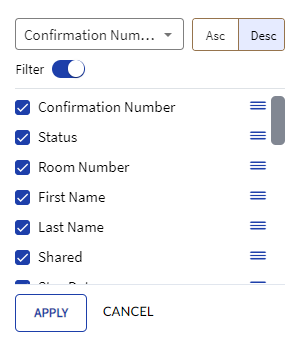
By clicking the Configure option, it enables users to select the columns that must be displayed or hidden from the grid. By default, all columns will be displayed. Other functionalities for this option include the following:
-
The user can choose whether the records in the grid must be arranged in ascending or descending order.
-
Asc - The records in the grid will be displayed in ascending order. By default, the Asc option will be selected.
-
Desc - The records in the grid will be displayed in descending order.
-
-
The user can enable the Filter flag to view the search fields in the grid.
-
The user can drag and drop and arrange the columns in the same order in which they must be displayed in the grid.
Click Begin Checkout against a reservation that must be checked out.
The Check Out screen with the folio details of the guest is displayed. If the check-out is prior to the actual departure date of the guest, Do you want to apply early checkout fee message is displayed.
Click Yes to apply early checkout fee or No to proceed without applying early checkout fee.
Enter details about the checkout in the Checkout Details section if preferred.
Enter the number of statements that must be printed.
Enable the Show Posting Distribution Details flag to posting display distribution details in the statement.
Users can perform the following actions from this screen before checking out the guest.
-
Print the check-out details using the Print icon.
-
Adjust postings on the reservation using the Post Charges icon.
-
View or Create guest complaints using the Guest Complaints icon.
-
Adjust the room rate using the Rate Adjustment icon.
Users can also copy the stay, transfer the stay, and set recurring charges etc. using the Quick Actions option.
Click Checkout.
If the payment method selected by the guest is cash, the Cash Payment screen is displayed.
Enter the amount received from the guest in the Cash Received field.
The Amount Due field displays the folio balance of the guest and the Change Due field displays the difference between values in the Amount Due and Cash Received fields. A negative value in the Change Due field indicates that the cash is to be paid to the guest and a positive value indicates that the cash is to be collected from the guest.
Click OK. The guest is checked out successfully.
If the Show Prompt on Checkout Statement Email flag in the System Defaults screen (Settings à System Setup) is enabled, a pop-up window with the following message will be displayed during the guest check-out process: Do you want to Email the Folio Invoice?
Users can click Yes to send the folio invoice to guest or No to proceed without sending the invoice.
Also, when the Send Folio Statement on Checkout flag in the System Defaults screen is enabled, the folio will be sent to guest’s email address at the time of check-out. The Show Prompt on Checkout Statement Email flag will be disabled for selection when this flag is enabled.
Users cannot check out a guest when there is a positive value in the Change Due field if the property does not allow guest check-outs with non-zero balance.