Checking Room Availability
The Availability menu allows users to view various information pertaining to group room bookings such as number of rooms booked for a particular date, the status of the bookings (definite, tentative, or prospective), and cancelled bookings.
Navigate to Groups à Availability à Visual GRC.
Refer to the following table and fill in the fields:
|
Field |
Description |
|---|---|
|
Start Date |
The date from when the availability details must be checked. |
|
End Date |
The date till when the availability details must be checked. |
|
Filters |
|
|
Property |
Select the property whose room availability is to be displayed. |
|
Show In Grid |
The information to be displayed on the first column of the grid. The available options are,
|
|
Based On |
The room availability is displayed based on the number of rooms contracted or blocked, as per the selection made in this field. |
|
Display |
The details to be displayed in the grid. User can select multiple option. The available options are:
|
|
Booking Status |
The booking statuses of the room. Users can select more than one option. The available rooms are,
|
|
Other Status |
Users can select the Cancelled option, which will display only the cancelled bookings. |
|
Building |
Select the preferred building to be considered for viewing bookings. All building records created in the Building Codes (Settings à Setup à Room à Building Codes) screen are displayed as options under this filter. Users can select multiple or all buildings. |
|
Room Type |
Select the preferred room type to be considered for viewing bookings. All room type records created in the Room Type Maintenance (Settings à Setup à Room à Room Type Maintenance) screen are displayed as options under this filter. Users can select multiple or all room types. |
Click Process.
By default, details of all bookings irrespective of their status (Definite, Tentative, and/or Prospect) are displayed in the grid. Users can modify the booking status from the Filters section, as preferred.
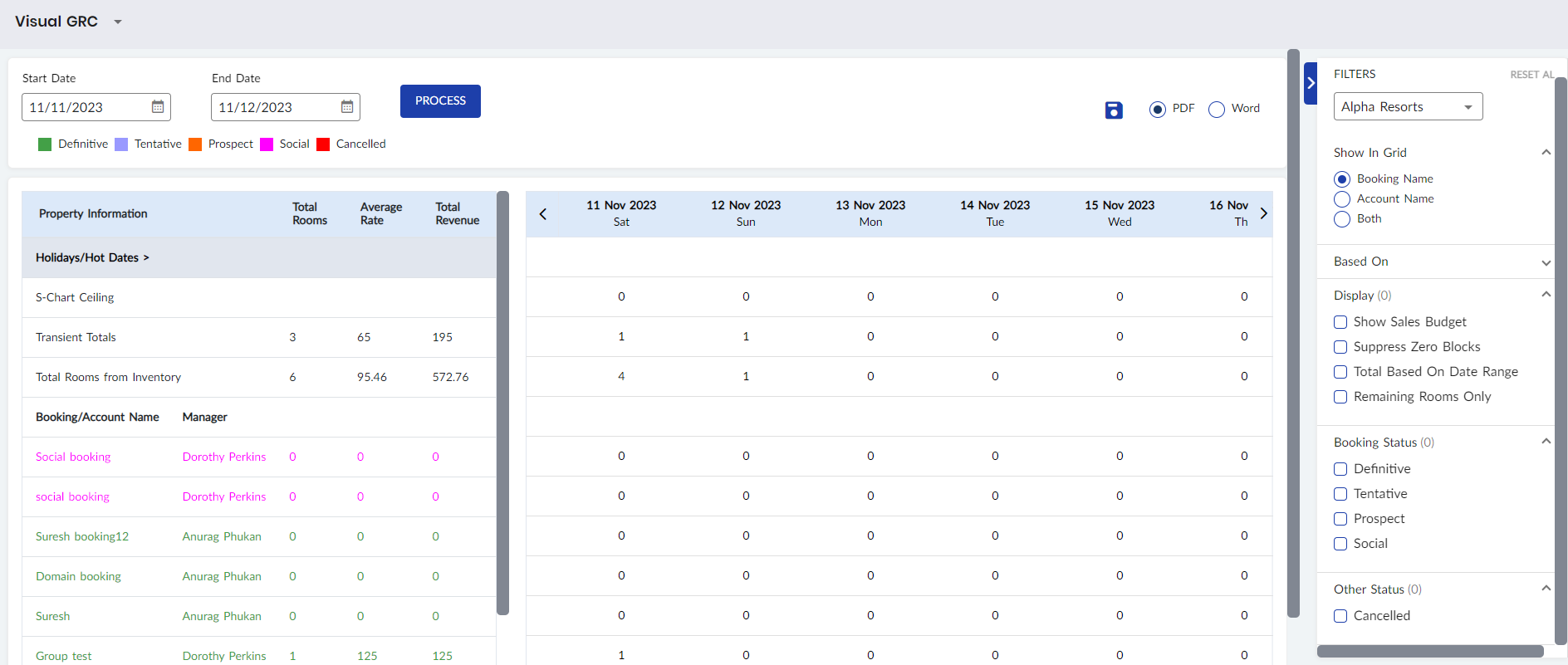
The grid displays S-chart ceiling, total rooms booked from inventory, booking/account name, manager assigned to the bookings, total rooms, average rate, total revenue information for all dates in the selected date range. The user can click on the Holidays/Hot Dates drop-down list to view the holiday and hot dates that fall within the selected date range.
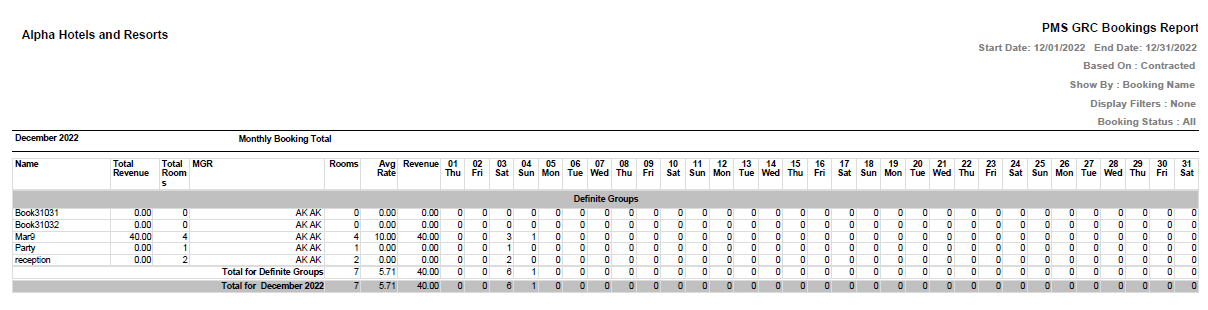
Users can also click the Save option and select the preferred file format (PDF or Word) to generate the GRC Bookings report that includes revenue details for rooms attached to bookings created within the selected date range. The downloaded report will include details of canceled groups and not details of holidays/hot dates, S-chart ceiling, and transient totals.
Sample Report