Creating Multi Property Reservations
Versa allows users to make reservations for guest in multiple properties at the same time. The reservation can be for the same dates or different dates and for the same guest or different guest. Users can compare the tariff/packages available in each of the selected property and make the reservations. Users can do this for a maximum of 3 properties at the same time.
Breakpoint: 60095 - Create MultiProperty Reservation (Front Office - Reservation)
Perform the following steps to create multi property reservations:
Navigate to Reservations à Reservations List screen.
Click the down arrow next to the Create Reservation button and select the Create Multi Property Reservation option. The Create Multi Property Reservation screen appears.
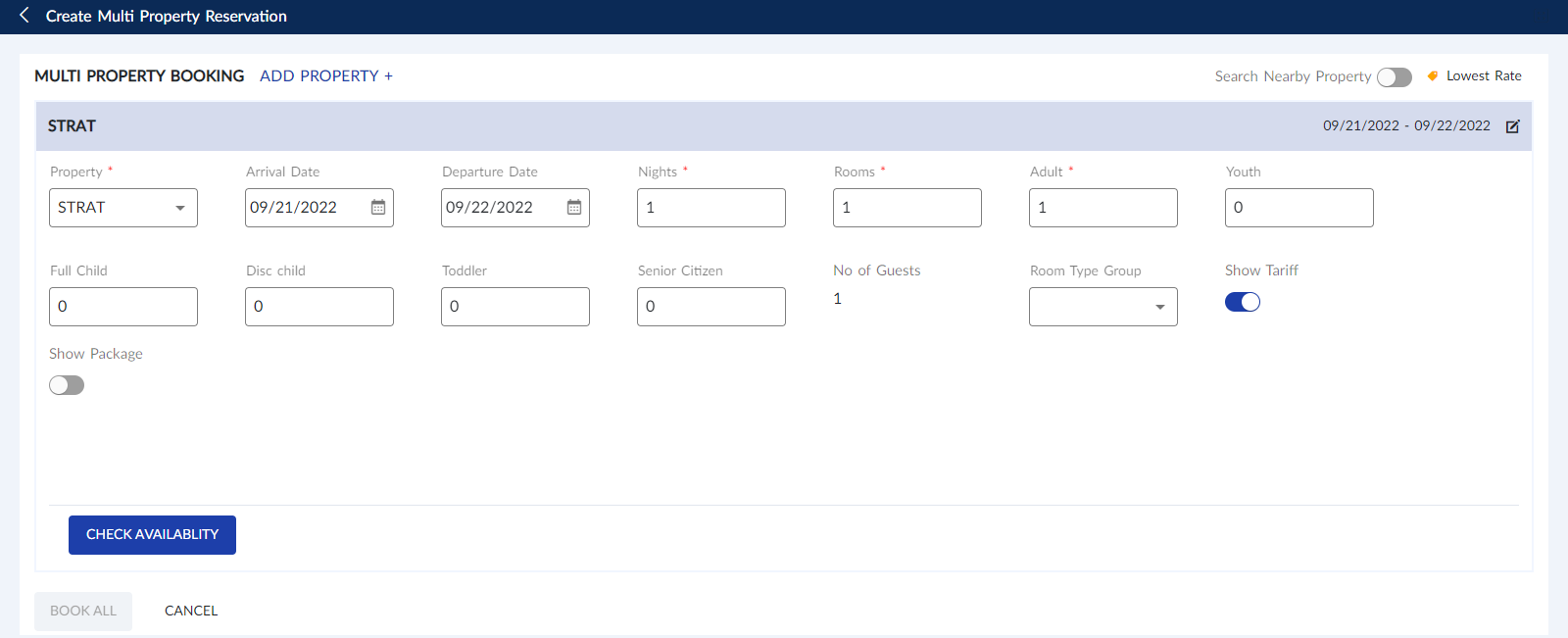
Click the Add Property option.
Users can create guest reservations for a maximum of up to 15 properties at the same time. This option will be greyed out after the user adds 15 properties. Also, when a user adds 4 or more properties, a slider will appear enabling the user to view and fill in the reservation details for all selected properties.
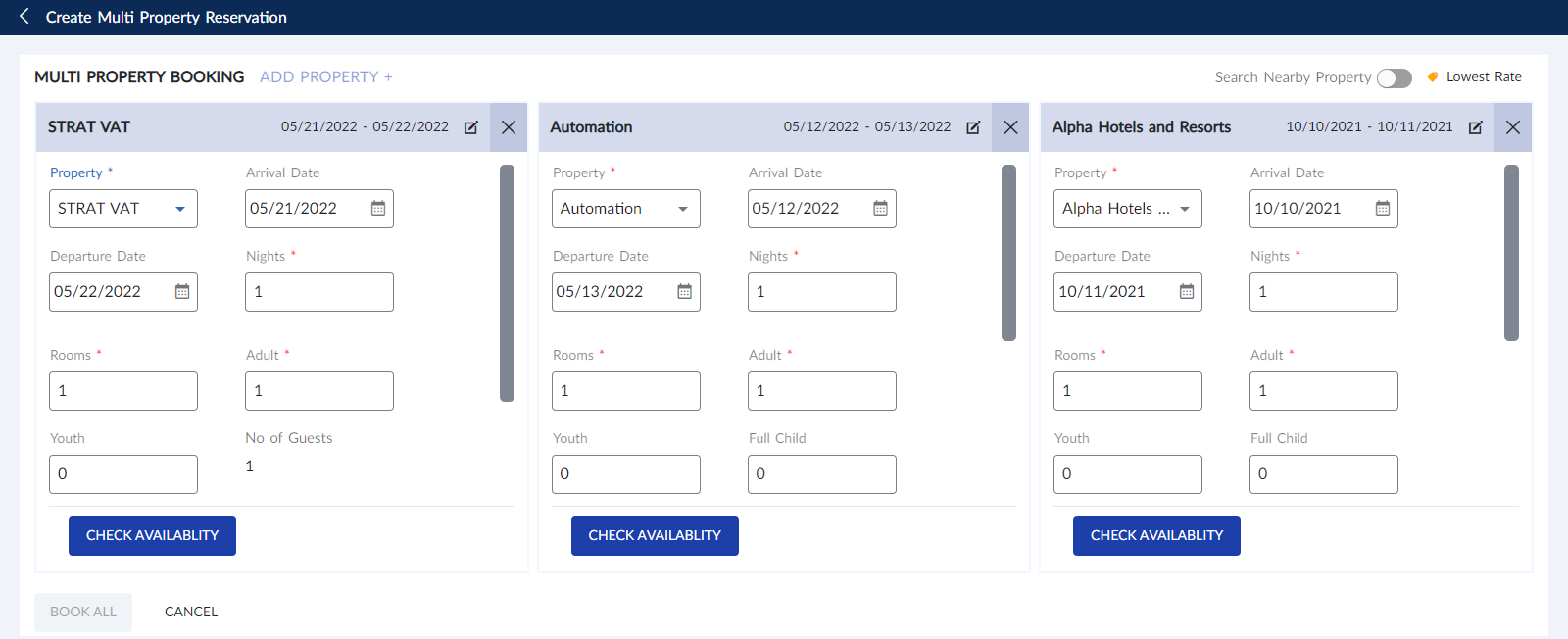
Select different properties from the Property drop-down list of each section.
Users can also select the same property in all three sections and select different dates in each to make three reservations for same or different guests to make multiple reservations at the same property.
Provide the necessary details such as arrival date, departure date, number of nights, number of rooms, and so on in all the selected properties.
Click the Check Availability button in each section to select the tariffs for the reservations.
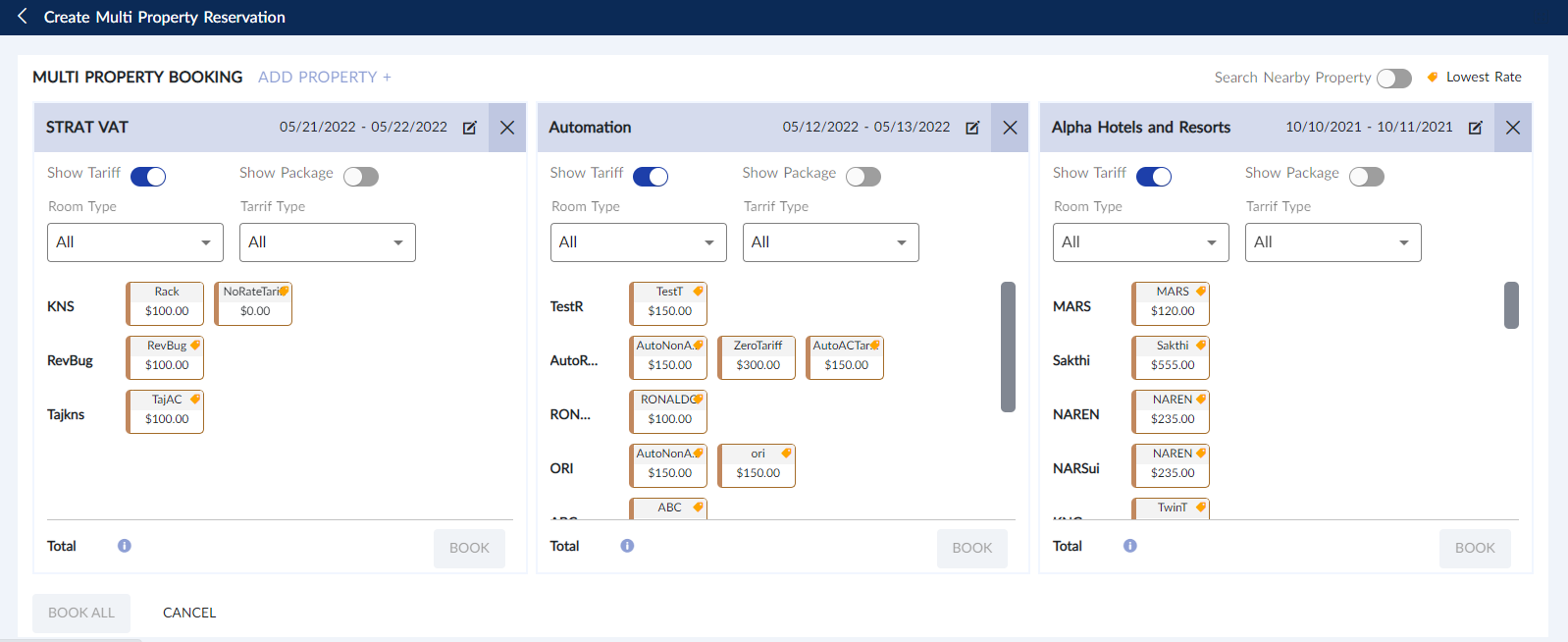
Refer to the following table and fill in the fields:
|
Field |
Description |
|---|---|
|
Show Tariff |
When enabled, all tariffs that are available for the reservation in the selected property are displayed in each section. It is mandatory to select either a tariff or package to proceed with the reservation. |
|
Show Package |
When enabled, all packages that are available for the reservation in the selected property will be listed in each section. It is mandatory to select either a tariff or package to proceed with the reservation. |
|
Room Type |
Select the preferred room types from this drop-down list to view only the tariffs/packages configured for the room type. |
|
Tariff Type |
Select the preferred tariffs from this drop-down list to view only the selected tariffs or packages based on the selected tariff. |
Select the preferred rates from each property.
The lowest rate available for the room types within the selected date range will be displayed with the Price Tag icon.
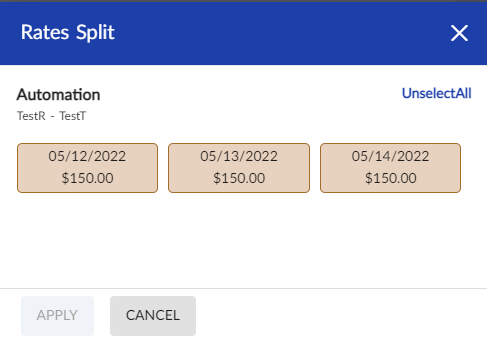
The tariff/package rate displayed in the tile is for full length of stay. That is, if a tariff rate is 150 and the length of stay is 3 days, then the tariff tile will display the value as 450. Users can click on the kebab icon that appears on hovering over the tile to view the rate split.
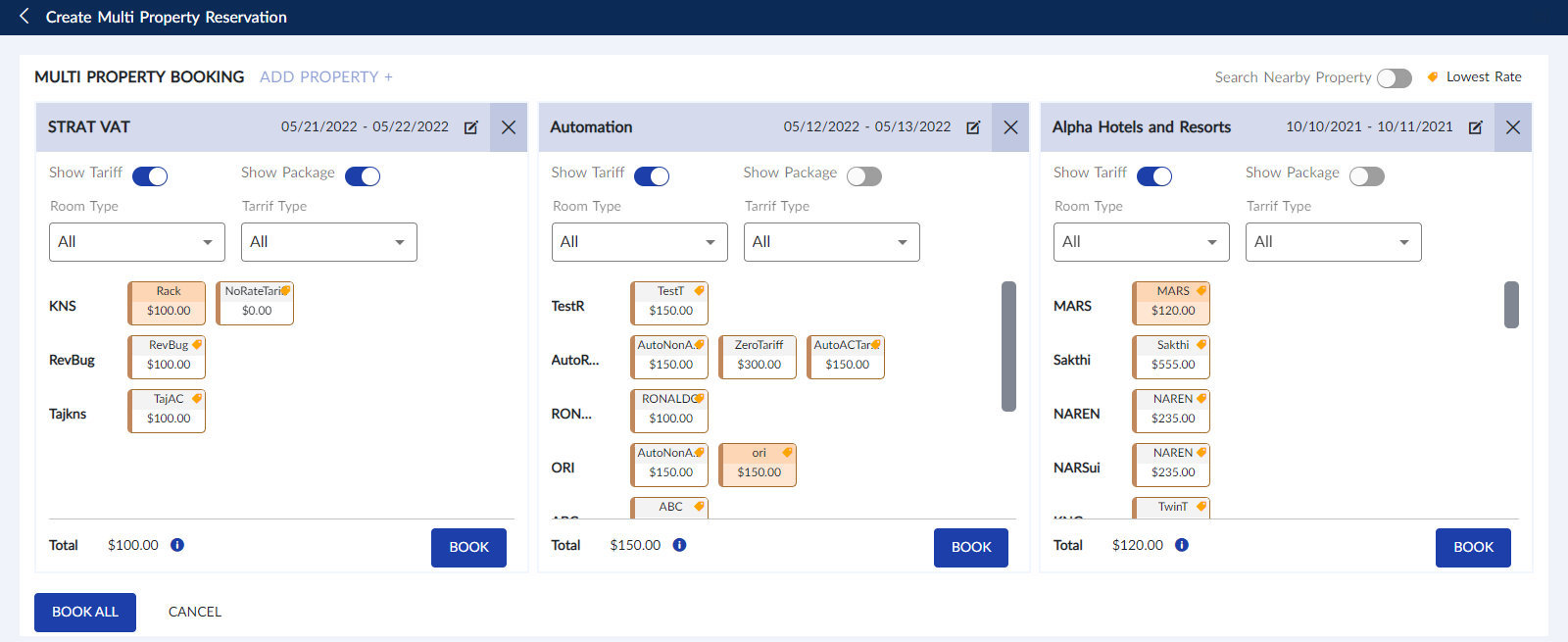
Based on the tariff/package selected, the total amount for the reservations will be displayed for each reservation.
Click Book All. The Create New Reservation screen for the property selected first appears.
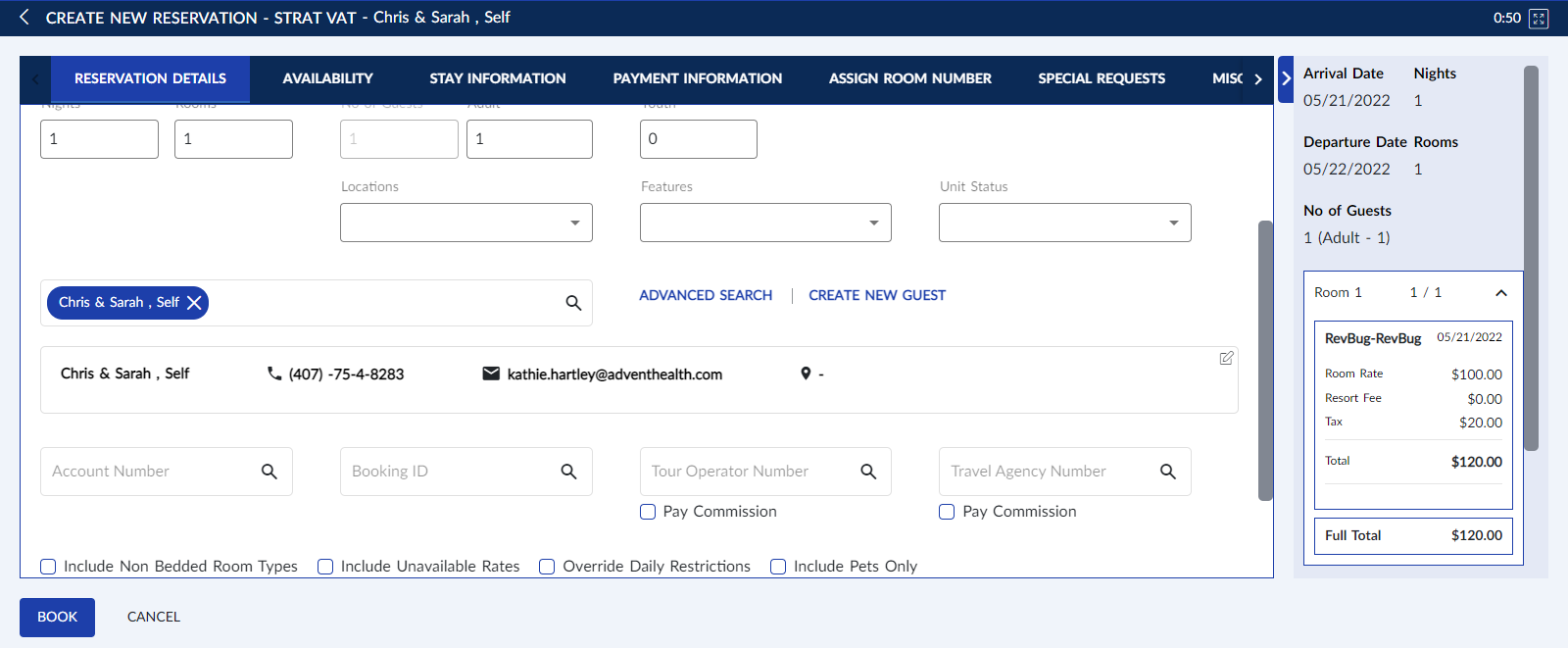
Select a guest in the Reservation Details tab.
Fill in the mandatory fields in all other tabs and click Book. The Create New Reservation screen from the second property appears.
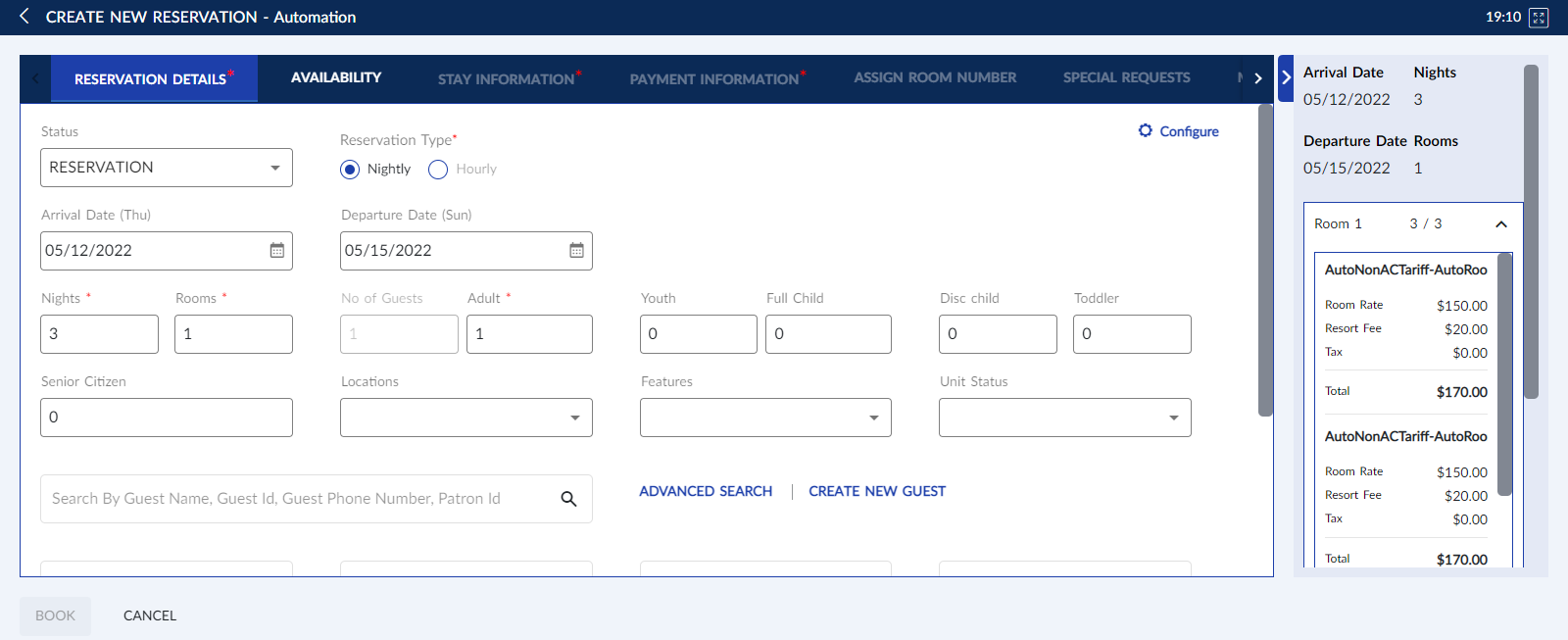
Select a guest and provide the necessary details.
Click Book. The Create New Reservation screen from the third property appears.
Select a guest and provide the necessary details.
Click Book. The reservations are booked successfully, and the Summary page appears.
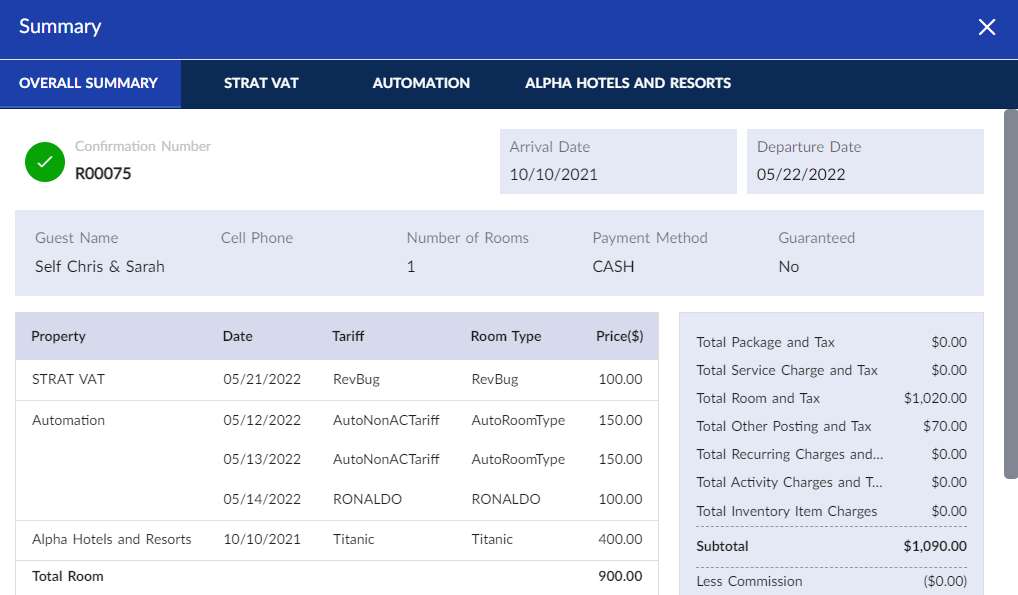
The Summary screen will include the Overall Summary tab, where a summary of all reservations created for all selected properties is displayed. In addition to this, for each reservation created, the booking summary of the reservation created for that property is displayed in a separate tab. As users can create up to three reservations for the same or three different properties at a time, the Summary screen will include up to three tabs along with the Overall Summary tab.