Housekeeping Snapshot
The Housekeeping Snapshot tab provides users with an overall view and graphical representation of the total number of bedded rooms in the building, the occupancy percentage, and room splits based on room conditions and status. The details are displayed for the current date and time.
On selecting the building, a tile displaying the following information appears:
-
Bedded Rooms - The total number of sleeping rooms that include bed.
-
Available Rooms - The total number of sleeping rooms that are available for booking. It is the sum of the total number of vacant rooms and number of scheduled departures on the current date.
-
Occupied - The total number of sleeping rooms that are currently occupied by guests.
-
Occupancy % - The percentage of the total number of occupied rooms in the building. It is calculated using the following formula:
-
Occupancy % = Total Number of Occupied Rooms / Total Number of Rooms × 100
Users can also click the Total option to view the information of all buildings in the property.
On clicking the Plus icon, the tile expands to display the room statistics section, which includes the pie charts - Occupied Rooms and Vacant Rooms.
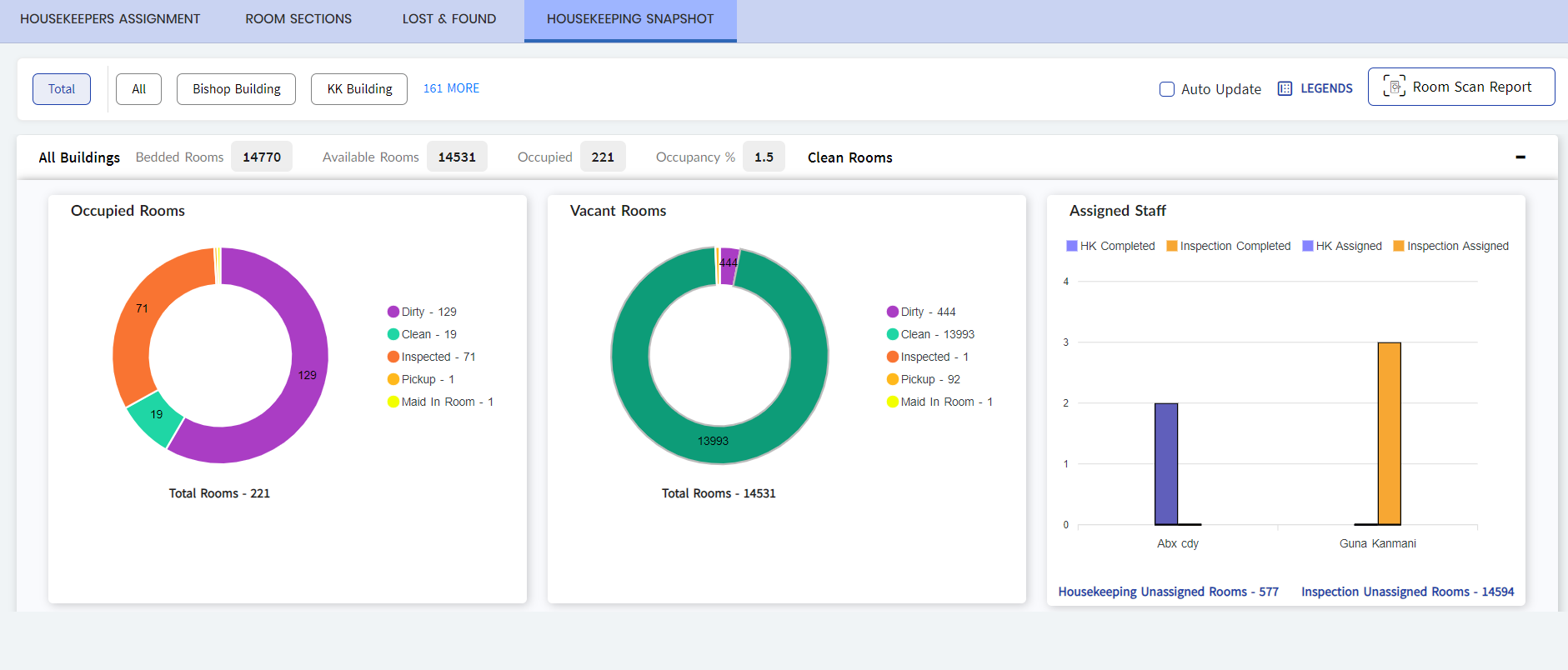
The user can view the following details in the pie charts:
In Occupied and Vacant Rooms Dashboard
-
Total Rooms - Indicates the total number of occupied or vacant rooms in the selected building or all buildings.
-
Stayovers - Indicates the number of rooms in the building that are occupied by guests for the current date and/or future dates.
-
Dirty - Indicates the number of unclean rooms that must be cleaned up before being assigned to guests.
-
Clean - Indicates the number of rooms that are in a clean state but have not been inspected by the housekeeping team.
-
Inspected - Indicates the number of rooms that are in a clean state and have been inspected by the housekeeping team. Rooms in this state can be assigned to guests.
-
Pickup - Indicates the number of rooms that have been picked up by the housekeeping team to determine whether the rooms need a full or partial service.
-
Remaining Departures - Indicates the number of departures in the building for the current day.
-
Out of Order - Indicates the number of rooms or equipment in the rooms that require a service and cannot be assigned to a guest. The rooms will not be displayed in the room inventory.
-
Do not sell - Indicates the number of rooms that are not available for check-in but will be available in room inventory.
-
Arrivals - Indicates the number of arrivals in the building on the current day.
Clicking on any field in the dashboard will display the details of the rooms, enabling users to assign or unassign housekeeping staff/inspectors for those rooms.
In the Assigned Staff Dashboard
The status of room assignments for housekeeping and inspections is displayed in this dashboard. The following details include:
-
Total number of rooms that have housekeeping completed and assigned
-
Total number of rooms that have inspection completed and assigned
-
Total number of unassigned housekeeping rooms
-
Total number of unassigned inspection rooms
Users can also perform the following actions in the Housekeeping Snapshot tab:
-
Generate the Room Scan report by clicking the Room Scan Report field. The user is navigated to the Rooms tab in the Reports module.
-
Update the values in the screen to reflect the latest changes by selecting the Auto Update field.
-
View the legends configured for the fields in the pie charts that depict the room status and conditions by hovering over the Legends icon. The user can use the Housekeeping Snapshot option in the Legend Configuration menu under System Setup to modify the color code of the legends.
-
Expand or collapse the tiles using the Plus and Minus icons.