SaaS
Launch the following URL in the browser:
Enter the Customer ID to login to the portal.
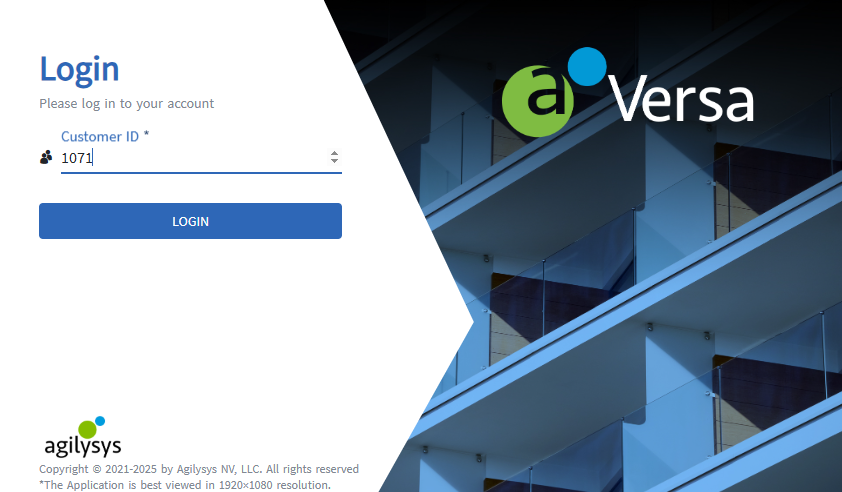
Users must enter the customer ID only when logging in for the first time. From the second time, the following Login screen will directly be displayed to the users. Users can use the Change Customer ID option in this screen to go back to the previous screen and enter a different customer ID.
Enter the user ID and password.
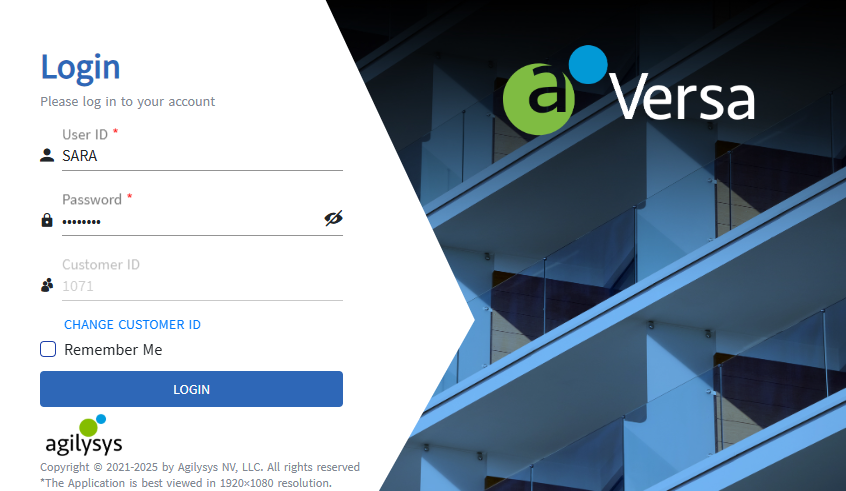
When users are logging in for the first time, any random value can be given as password. On selecting Login, the Set Password pop-up page appears.
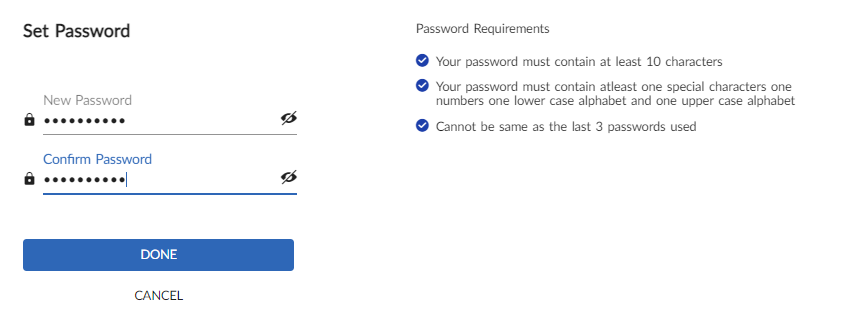
Set the new password by complying with the password requirements.
If the user logs in with an expired password, the Change Password pop-up page appears.
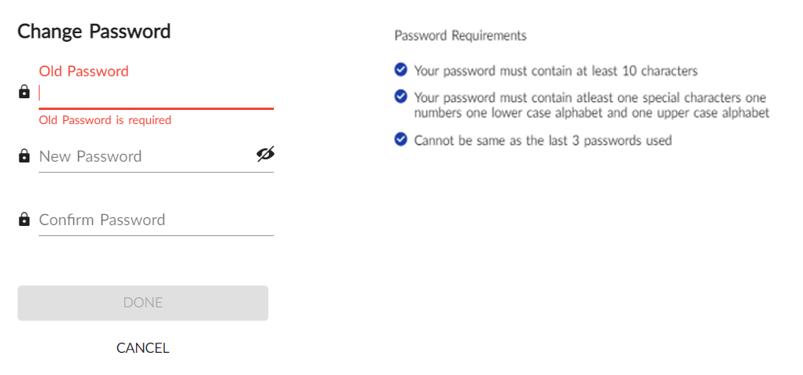
Enter the existing password in the Old Password field.
Enter the new password in the New Password field.
Enter the new password again in the Confirm Password field. The password must meet the Password Requirements.
Click Done. The password is changed.
Login with the new credentials.