Setting Up Maintenance Equipment
The Maintenance Equipment Setup option allows users to create, view, and maintain records of equipment in different locations of the property.
Breakpoint: 70005 - Maintenance Equipment Setup (Front Office - Housekeeping)
Perform the following steps to setup maintenance equipment location at the property:
Navigate to Housekeeping à Maintenance à Maintenance Equipment Setup.
Click Create Maintenance Equipment. The Create Maintenance Equipment screen appears.
Refer to the following table and fill in the fields:
|
Field |
Description |
|---|---|
|
Equipment Code |
A unique code that identifies the equipment. Up to 10 alphanumeric characters are supported. |
|
Equipment Description |
The description of the equipment. Up to 50 alphanumeric characters are supported. |
|
Room Number |
Search for the room number where the equipment is located. |
|
Floor |
The floor where the room is located. Up to 99 numbers are supported |
|
Building |
Select the building in which the room for equipment maintenance is located from the list of buildings in the drop-down list. The codes of building records created in the Building Codes screen are displayed in the drop-down list. |
|
Location |
Select the location where the equipment is available in the property. The records created in the Maintenance Equipment Locations screen as displayed as options in the drop-down list. |
|
Sub Location |
Additional location details to help identify the selected maintenance location. For example, if the selected location is Lobby, the sub location can be entered as 7th Floor. Values up to 20 digits are supported. |
|
Serial Number |
The serial number of the equipment. Values up to 20 digits are supported. |
|
Asset Tag |
The asset tag of the equipment in the property. Values up to 20 digits are supported. |
|
Purchase Date |
The date the equipment was purchased or last serviced. |
|
Warranty Expiration |
The warranty expiration date of the equipment. |
|
End of Service / Replacement Date |
The expiration date of the service or replacement date of the equipment. |
|
Add Multiple Rooms |
When enabled, the user can select a building from the Building drop-down list and then select multiple rooms in the building where the equipment is located. |
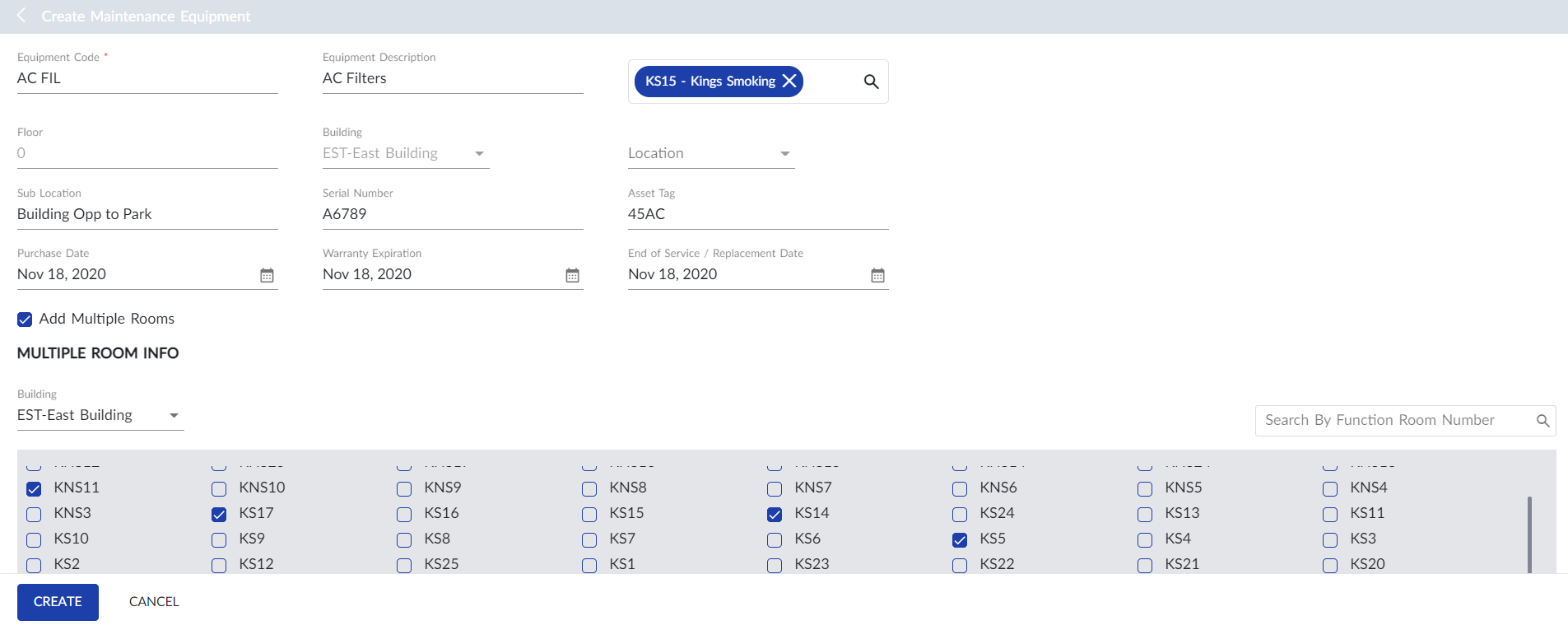
Users can also search for a specific room number using the Search By Room Number field.
Click Create. The record for maintenance equipment location is created and displayed in the grid.
Users can also perform the following actions in the Create Maintenance Equipment screen:
-
Modify the equipment and location details using the Edit icon.
-
Delete the maintenance equipment record using the Delete icon.
-
Search for the equipment record using the equipment code or name. Optionally, the user can also search for an equipment record using the options available in Advanced Search.
-
Print the equipment location details using the Print icon.