Uploading Guest Details for Reservation
The Group Reservation Upload option allows users to add multiple guests to a reservation by uploading the guest details through a spreadsheet. The user can upload the spreadsheet successfully only if the following conditions are met:
-
When the value of the booking default, Pickup Rooms When Status is, is set as Definite, the status of the booking ID entered in the Group Booking ID field of the Group Reservation Upload screen must also be Definite. However, if the value of the Pickup Rooms When Status is field is set as Tentative, the user can upload reservations that are definite or tentative.
-
The arrival and departure dates entered in the spreadsheet and reservation must match. If the dates do not match but are within the block days range set in the Group Defaults screen under the System Setup menu, the user can then upload the spreadsheet by enabling Do you want to allow rooms that falls outside the booking arrival and departure dates to modify the blocks?
-
The mandatory fields highlighted in yellow must be filled in.
If the user clicks the Download Sample option, the following table can be used as a reference to fill in the Excel sheet:
|
Field |
Description |
|---|---|
|
Confno |
The confirmation number of the booking. |
|
Guest ID |
The identification number of the guest record. Up to 10 alphanumeric characters are supported. |
|
*Arrival Date |
The arrival date of the guest in the MM/DD/YYYY format. |
|
*Departure Date |
The departure date of the guest in the MM/DD/YYYY format. |
|
Title |
The forms-of-address that precedes the guest’s name. Up to 16 alphanumeric characters are supported. |
|
Init |
The initials of the guest. Up to 1 alphanumeric character is supported. |
|
*Last Name |
The last name of the guest. Up to 30 alphanumeric characters are supported. |
|
*First Name |
The first name of the guest. Up to 30 alphanumeric characters are supported. |
|
Company Name |
The name of the company to which the guest belongs. Up to 60 alphanumeric characters are supported. |
|
Address 1 |
The primary address of the guest. Up to 30 alphanumeric characters are supported. |
|
Address 2 |
The secondary address of the guest. Up to 30 alphanumeric characters are supported. |
|
Address 3 |
The additional address of the guest, if any. Up to 30 alphanumeric characters are supported. |
|
City |
The city where the guest belongs to. Up to 20 alphanumeric characters are supported. |
|
State |
The state where the guest belongs to. Up to 20 alphanumeric characters are supported |
|
ZIP |
The postal code of the guest’s location. Up to 10 alphanumeric characters are supported. |
|
County |
The county where the guest belongs to. Up to 20 alphanumeric characters are supported. |
|
Country |
The country of origin of the guest. Up to 20 alphanumeric characters are supported. |
|
Country Code |
The country code for the phone number. This is applicable to any telephone number (mobile, home, or office) of the guest. Up to 5-digit numbers are supported. |
|
Cell Phone |
The mobile number of the guest. The user can enter multiple phone numbers and each number must be separated by a comma. The special characters, such as square brackets (), commas (,), and hyphens (-), are allowed. Up to 25-digit numbers are supported. |
|
Home Phone |
The home telephone number of the guest. Up to 25-digit numbers are supported. |
|
Office Phone |
The office telephone number of the guest. Up to 25-digit numbers are supported. |
|
Office Extension |
The extension number to connect to the guest’s office telephone number. Up to 5-digit numbers are supported. |
|
Personal Email |
The personal email address of the guest. Up to 60 alphanumeric characters are supported. |
|
Office Email |
The official email address of the guest. Up to 60 alphanumeric characters are supported. |
|
*Guaranteed |
Indicates whether the reservation is guaranteed or not. The user can enter Y or N. |
|
CC Number |
The credit card number of the guest. Up to 150 alphanumeric characters are supported. |
|
CC Exp |
The expiry date of the guest’s credit card. Up to 4-digit number can be entered in the MMYY format. |
|
CC Name |
The given name in the guest’s credit card. Up to 25 alphanumeric characters are supported. |
|
Comments |
The comments or preferences related to the guest’s stay. Up to 1000 alphanumeric characters are supported. |
|
*Room Type |
A code that identifies the type of room. Up to 6 alphanumeric characters are supported. |
|
Room |
The room number assigned. Up to 6 alphanumeric characters are supported. |
|
*Rate |
The rate linked to the room type. Up to 7-digit numbers are supported. |
|
*Adults |
The number of adult guests in the reservation. Up to 1-digit number is supported. |
|
Children |
The number of children in the reservation. Up to 1-digit number is supported. |
|
Share Confno |
The confirmation number of the shared booking, if any. Up to 15 alphanumeric characters are supported. |
|
Title 2 |
The forms-of-address that precedes the additional guest’s name. Up to 16 alphanumeric characters are supported. |
|
Init 2 |
The initial of the additional guest in the reservation. Up to 1 alphanumeric character is supported. |
|
Last Name 2 |
The last name of the additional guest in the reservation. Up to 30 alphanumeric characters are supported. |
|
First Name 2 |
The first name of the additional guest in the reservation. Up to 30 alphanumeric characters are supported. |
|
Package Code |
The package code associated with the reservation. Up to 15 alphanumeric characters are supported. |
If there are pickups added to a reservation and the user clicks the Download Pickups option, the data entered when creating the pickups will be generated in the downloaded file. If preferred, users can add or modify the preferred details in the file and then upload it back into Versa.
The following table can be used as a reference to fill in the Excel sheet:
|
Field |
Description |
|---|---|
|
CONFNO |
The confirmation number of the reservation. |
|
LINKID |
The link ID associated with the reservation. |
|
GUESTID |
The guest ID associated with the guest. |
|
ARRIVALDATE |
The arrival date of the guest. |
|
DEPARTUREDATE |
The departure date of the guest. |
|
TITLE |
The title that precedes the name of the guest. |
|
INIT |
The initials of the guest. |
|
LASTNAME |
The last name of the guest. |
|
FIRSTNAME |
The first name of the guest. |
|
COMPANYNAME |
The company name of the guest. |
|
ADDRESS1 |
The address of the guest. |
|
CITY |
The city of the guest. |
|
STATE |
The state of the guest. |
|
ZIP |
The zip code of the guest. |
|
COUNTY |
The county of the guest. |
|
COUNTRY |
The country of the guest. |
|
COUNTRYCODE |
The country code of the guest. |
|
CELLPHONE |
The cell phone number of the guest. |
|
HOMEPHONE |
The home phone number of the guest. |
|
OFFICEPHONE |
The office phone number of the guest. |
|
OFFICEEXTENSION |
The office extension number of the guest. |
|
PERSONALEMAIL |
The personal email ID of the guest. |
|
OFFICEEMAIL |
The office email ID of the guest. |
|
GUARANTEED |
Indicates whether the reservation is guaranteed. |
|
COMMENTS |
Comments to be entered or modified by the user. |
|
ROOMTYPE |
The room type assigned to the reservation. |
|
ROOM |
The room number assigned to the reservation. |
|
RATE |
The room rate for the reservation. |
|
ADULTS |
The number of adults on the reservation. |
|
CHILDREN |
The number of children on the reservation. |
|
SHARECONFNO |
The confirmation number of shared reservation. |
|
PACKAGECODE |
The package code selected for the reservation |
Perform the following steps to successfully upload the guest details:
Navigate to Reservations à Miscellaneous.
Select Group Reservation Upload from the drop-down list.
Click the icon in the Select File to Upload section and browse through the .XLSX file to upload.
Click Open. The file is uploaded to the screen.
Enter the booking ID of the reservation to which the guests must be added. If the spreadsheet includes guests for whom the arrival or departure date is different from that of the reservation, then select the Do you want to allow rooms that falls outside the booking arrival and departure dates to modify the blocks? option.
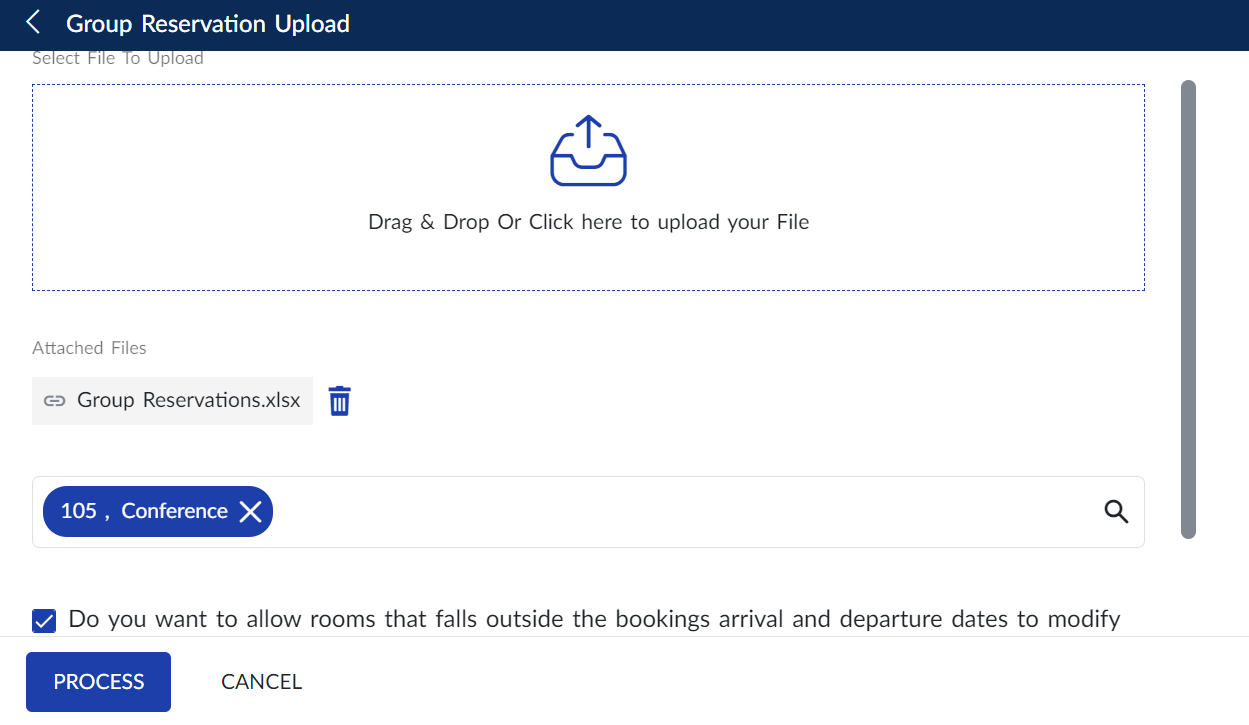
Click Process. The group reservation upload is complete, and the guests are successfully added to the reservation.