View Customer Transactions
The View Customer Transactions tab allows users to view the details of all transactions posted for the customer’s A/R account.
Perform the following steps to view the transactions in the customer’s A/R account:
Navigate to Accounting à View Customer Transaction.
Search for and select the preferred A/R account or a specific transaction in the A/R account using the search and/or filter options discussed in the following table:
|
Field |
Description |
|---|---|
|
Search Method |
|
|
By Account |
The user can search for transactions by entering the account number in the Account Code field. In addition, the user can click the Search A/R Account Code field and navigate to the A/R Customer Search screen to search for the customer account using the account number, name, or preference entered in the customer account. |
|
By Transaction Number |
The user can search for a specific transaction record by entering the transaction number in the Transaction Code field. |
|
Transaction Date to Display |
|
|
Show All |
Displays all transactions posted for the account till date. |
|
Date Range |
Displays all transactions posted for the account within the selected date range. |
|
Transaction Status Options |
Displays transactions based on one of the following transaction statuses selected from the drop-down list:
By default, the Active Transactions with Balance option is selected. |
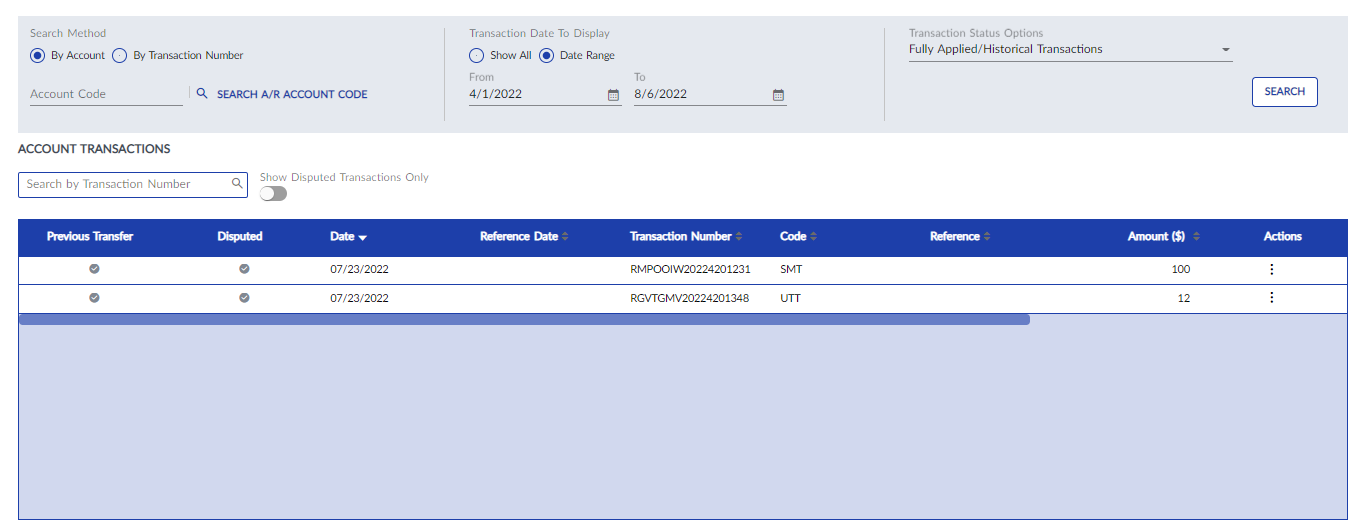
A list of transactions in any status (disputed, distributed, and transferred) that match search and filter criteria listed above is displayed in the Account Transactions grid. The user can search for and select a specific transaction by entering the transaction number in the Search option.
In addition, by enabling the Show Disputed Transactions Only toggle switch, only the disputed transactions will be filtered and displayed in the grid. If any transaction in the grid is a disputed transaction, the icon in the Disputed column for that transaction is displayed in Yellow.
Users can also view the following details in the View Customer Transaction screen:
-
The value of Total Charges field represents the total amount including all transaction charges in the customer’s account.
-
The value of the Total Credits field represents the total credit value including the credits of all transactions in the customer’s account.
-
The value of the Account Balance field represents the balance amount in the customer’s account excluding the credit value from the total transaction charges.
Users can navigate to the following screens by selecting the corresponding options from the kebab menu in the Actions column of the View Customer Transaction screen:
-
The View A/R Customer Maintenance screen to view the customer’s account information by selecting the View Customer Account option.
-
The Edit Batch screen to view the transaction details by selecting the View Batch option.
-
The View Applied History screen to view transactions with credit charges applied by selecting the View Applied History option. This option is only available if credits or charges have been applied to this transaction from the Charges tab.
-
The View Transfer Trail screen to view the details of the transactions transferred to another account by selecting the View Transfer Trail option. This option is only available when the transaction charges have been transferred to another customer account using the Transfer Transaction option in the View A/R Customer Maintenance screen.
-
The View Invoice screen to view the preview of the invoice generated for that transaction by selecting the View Invoice option. This option is available for selection only if an invoice has been generated for this transaction.
-
The Apply Credits/Charges screen to apply credits or charges to the transaction by selecting the Apply Credits option.
-
The Unapply Payment/Invoice screen to withdraw the payment for the transaction or delete the generated invoice by selecting the Unapply Payment/Invoice option.
-
The Guest Folio screen to view the details of the transactions posted from the integrated systems by selecting the Guest Folio option.
-
The Transaction Dispute screen to change the status of the transaction to Disputed or Not Disputed by selecting the Transaction Dispute option.